Ads bring people to your store. What happens after that is up to the store. If shoppers leave at the cart today, more ads only send more people to that same exit.
The good news: the fixes are usually small. None of the changes below needs a redesign, and each one makes every ad you already pay for go further. Together they move the two numbers that decide whether ads pay off: conversion rate (how many visitors buy) and average order value (how much they spend).
Why more ads is not the only answer
An ad buys a visit. Your store decides what the visit is worth. If the store converts better, the same ad budget brings more orders, and the cost of each order drops. That matters most in the fourth quarter, when every store bids for the same shoppers and ads cost more than at any other time of year.
Each change below is a setting, not a project.
1. Keep the cart on the page
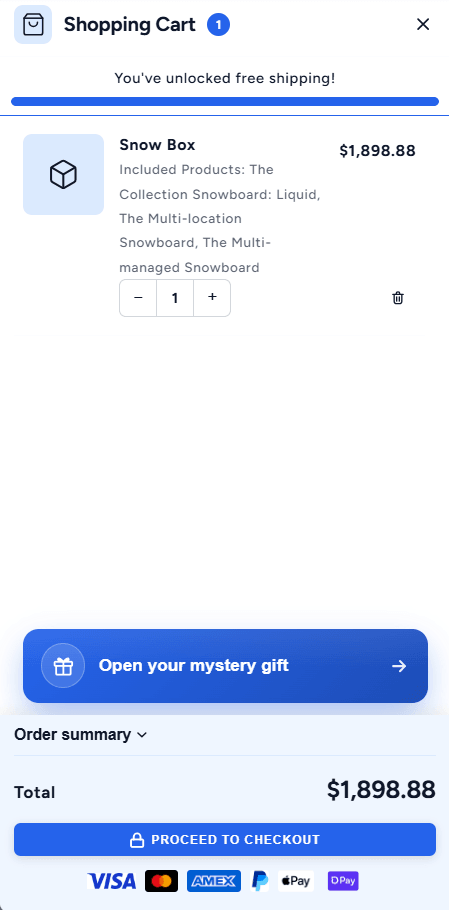
On many themes, Add to cart sends the shopper to a separate cart page. They have to come back to keep shopping, and many do not. A cart drawer slides in over the page instead: the shopper sees what they added, and can go on browsing or check out.
The drawer is also the best place for the next three changes, because it is where the shopper looks right after deciding.
2. Show the way to free shipping
A line like “Add $12 for free shipping”, with a bar that fills up, turns a cost into a goal. Shoppers who are close add one more item. Shoppers who reach it see “You’ve unlocked free shipping” and feel they did well. Set the goal a little above your usual order value.
3. Show the savings, not only the price
“$674.96” says nothing. “$674.96, was $749.95” says the shopper is getting a deal. Show the full price crossed out wherever you discount, and when you offer a better price for more, show each step.
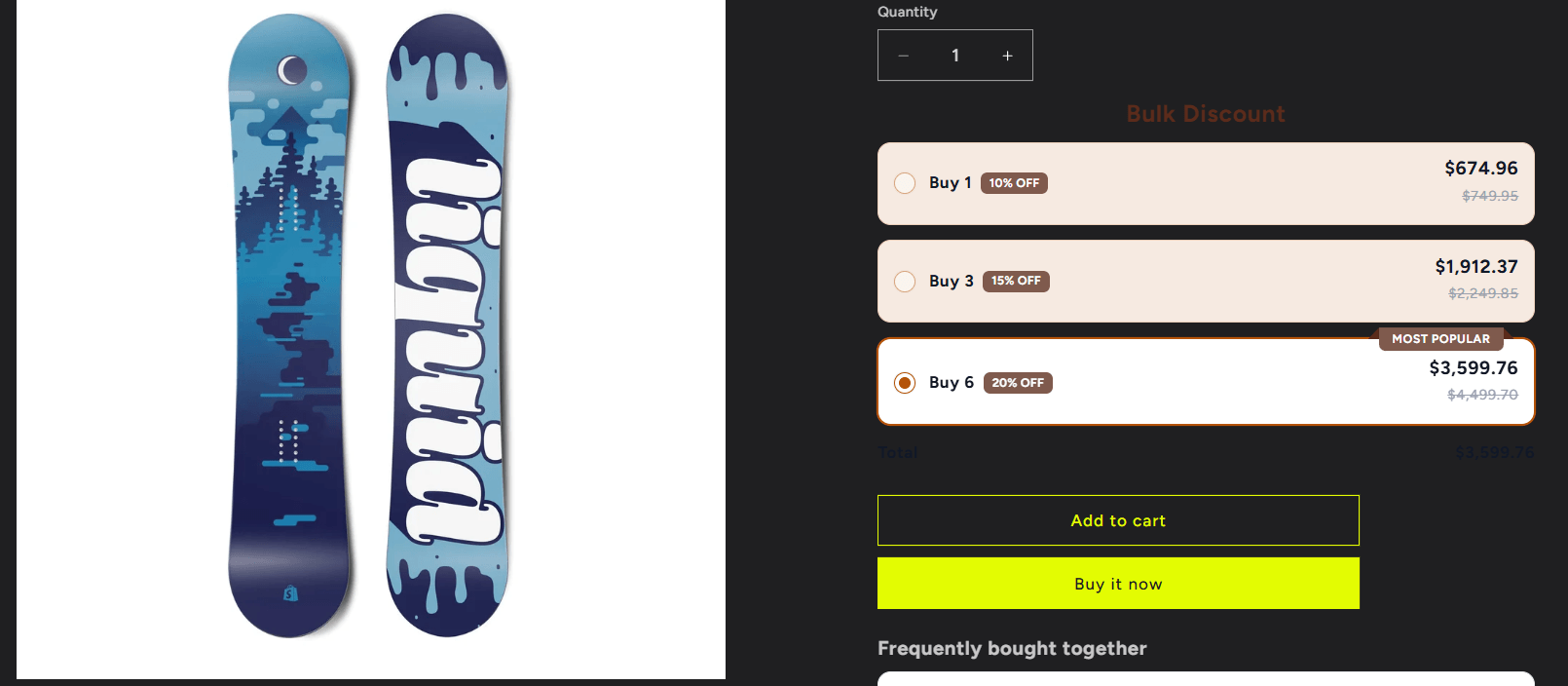
The ladder above is a volume discount from Flash Box Builder, and the price on it is the price at checkout.
4. Keep Add to cart in reach on mobile
On a phone, the Add to cart button scrolls away as soon as the shopper reads the description or the reviews. A sticky bar at the bottom of the screen keeps the product, the price and the button in view the whole time. Flash Cart Drawer Upsell includes one, along with a sticky cart bubble that opens the cart from anywhere on the page.
5. Answer the doubts next to the button
Right before checkout, shoppers wonder whether the store is real and what happens if the item does not fit. Answer that where they are looking:
- The payment methods you accept, as icons under the checkout button
- One line about returns, with a link to the policy
- Shipping protection as an option, for orders that are worth protecting
6. Put the discount box in the cart
A shopper who sees “Have a code?” only at checkout often leaves to search for one, and does not come back. A discount box in the cart drawer, or a short list of the codes that apply, keeps them in the store. Flash Cart Drawer Upsell has both a code box and a coupon picker.
7. Remove what slows the store down
Every app that loads on the storefront adds a little weight. Remove the ones you no longer use, and check that uninstalled apps did not leave code behind in your theme. Prefer apps that work without editing your theme code: they are easier to remove cleanly, and a theme update does not break them.
How to know it worked
Change one or two things at a time, and compare the same days of the week before and after. In Shopify Analytics, watch:
- Conversion rate: the share of sessions that end in an order
- Average order value: what each order is worth
- Sessions that reached checkout: if this rises, the cart is doing its job
- Cart opens as a drawer, not a separate page
- Free-shipping progress shown in the cart
- Savings shown on the product page, with the full price crossed out
- Add to cart always in reach on mobile
- Payment icons and a clear returns line near the checkout button
- A discount box in the cart, so nobody leaves to hunt for a code
- Unused apps removed, and nothing that edits your theme code you don’t need
- Conversion rate and average order value checked every week
For the busiest weeks of the year, see how to get a bigger average order value this Black Friday and what to set up before Christmas.