On a phone, the Add to cart button is gone after one swipe. The shopper scrolls down to the photos, the description, the reviews, and by the time they are ready, the button is a screen and a half above them. Some scroll back. Many do not.
Flash Cart Drawer Upsell fixes that with two things that stay put: a sticky Add to cart bar that sits at the bottom of the product page however far the shopper scrolls, and a sticky cart button that floats over every page of the store, with the cart one tap away.
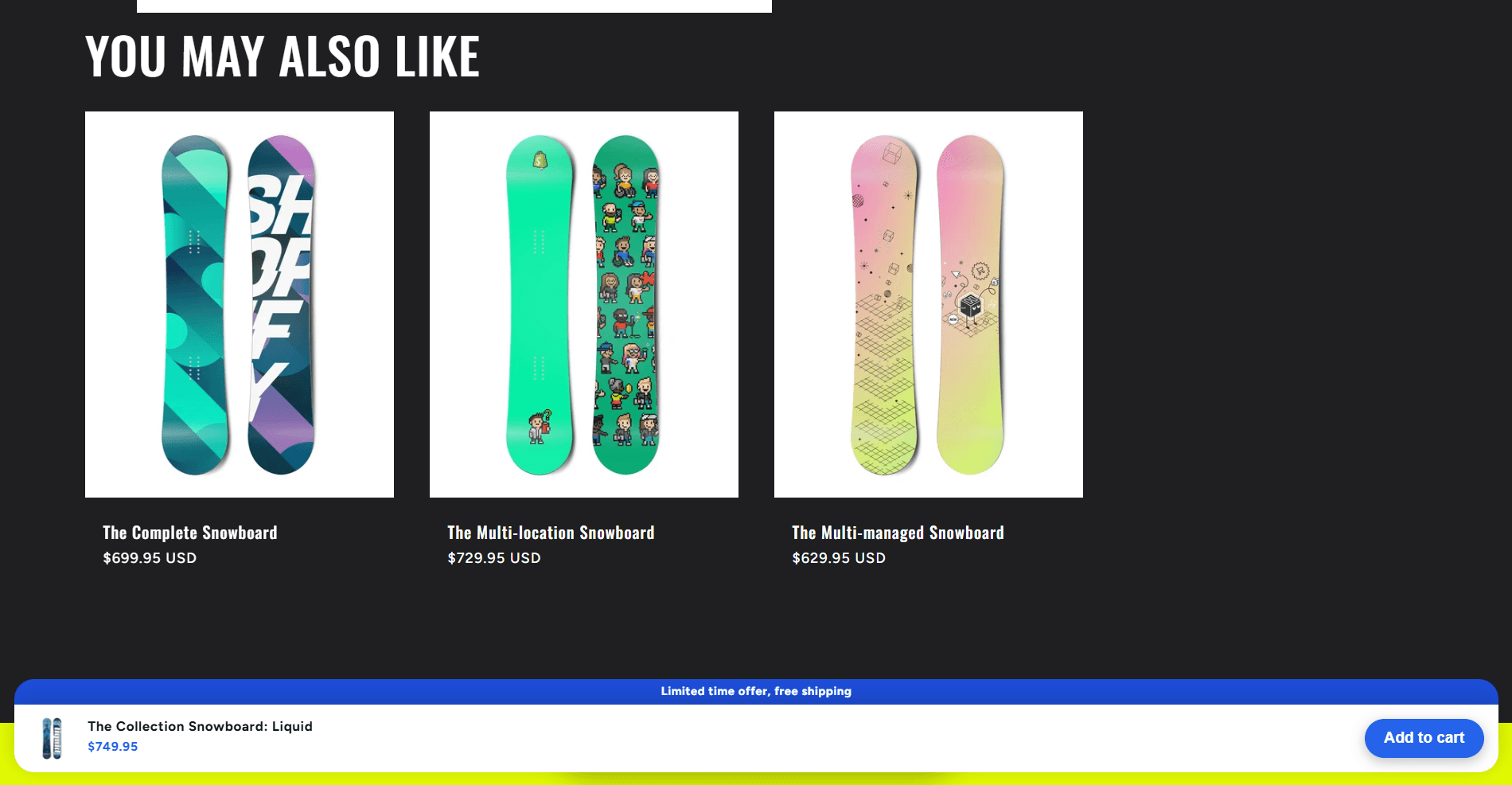
The sticky Add to cart bar
The bar shows the product’s thumbnail, name and price, a variant picker and a quantity stepper if you want them, and the Add to cart button. Tapping it adds the item and opens the cart drawer, so the shopper sees what they added and can keep going or check out.
You choose where it appears and when. It can show on every device or only on phones, and it can be there from the first second or wait until the shopper has scrolled.
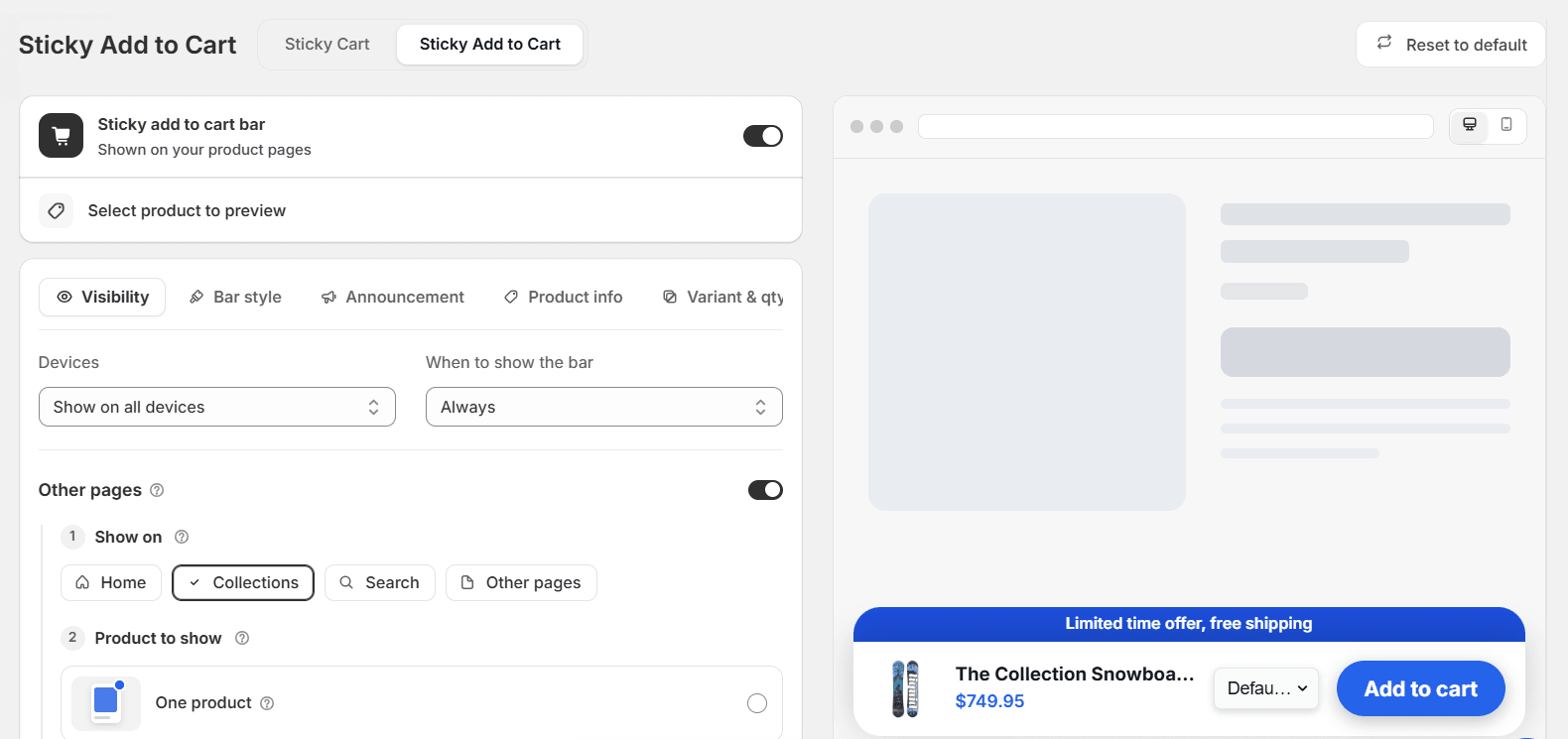
Other pages is the part most stores miss. The bar can also sit on the home page, collections, search results and other pages, showing one product you pick or a random one, so a shopper browsing a collection has an Add to cart in reach before they have opened a single product.
Make it look like your store
The bar is styled in the app, not in your theme. Pick a layout (a standard full-width bar or a compact island), a shape (an edge-to-edge ledge or a floating rounded card), a colour preset or your own palette, and the font, background, shadow and corner radius.
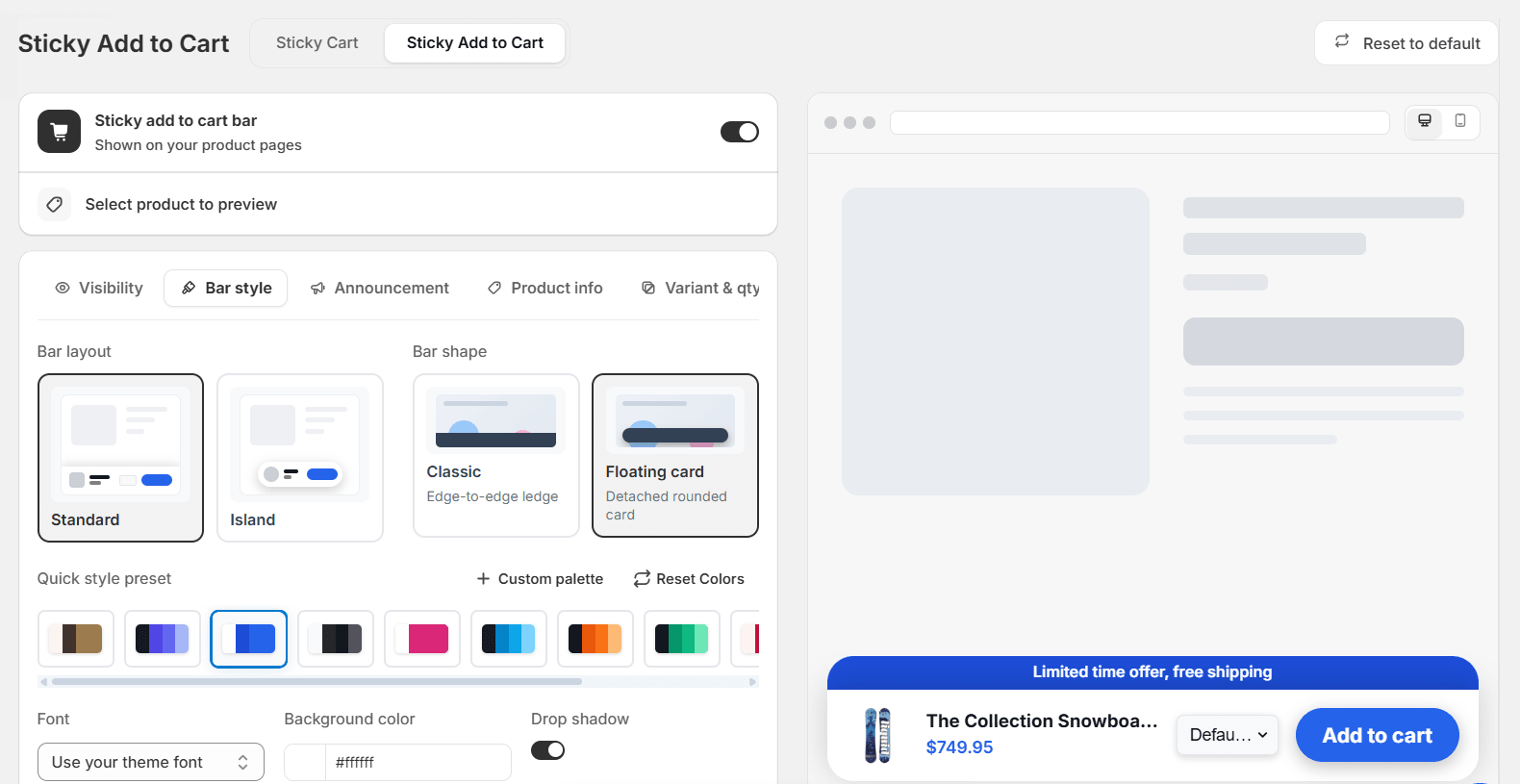
The Announcement tab adds a strip above the bar for a short message such as a free-shipping offer, and Product info and Variant & qty decide what the bar shows beside the button.
The sticky cart button
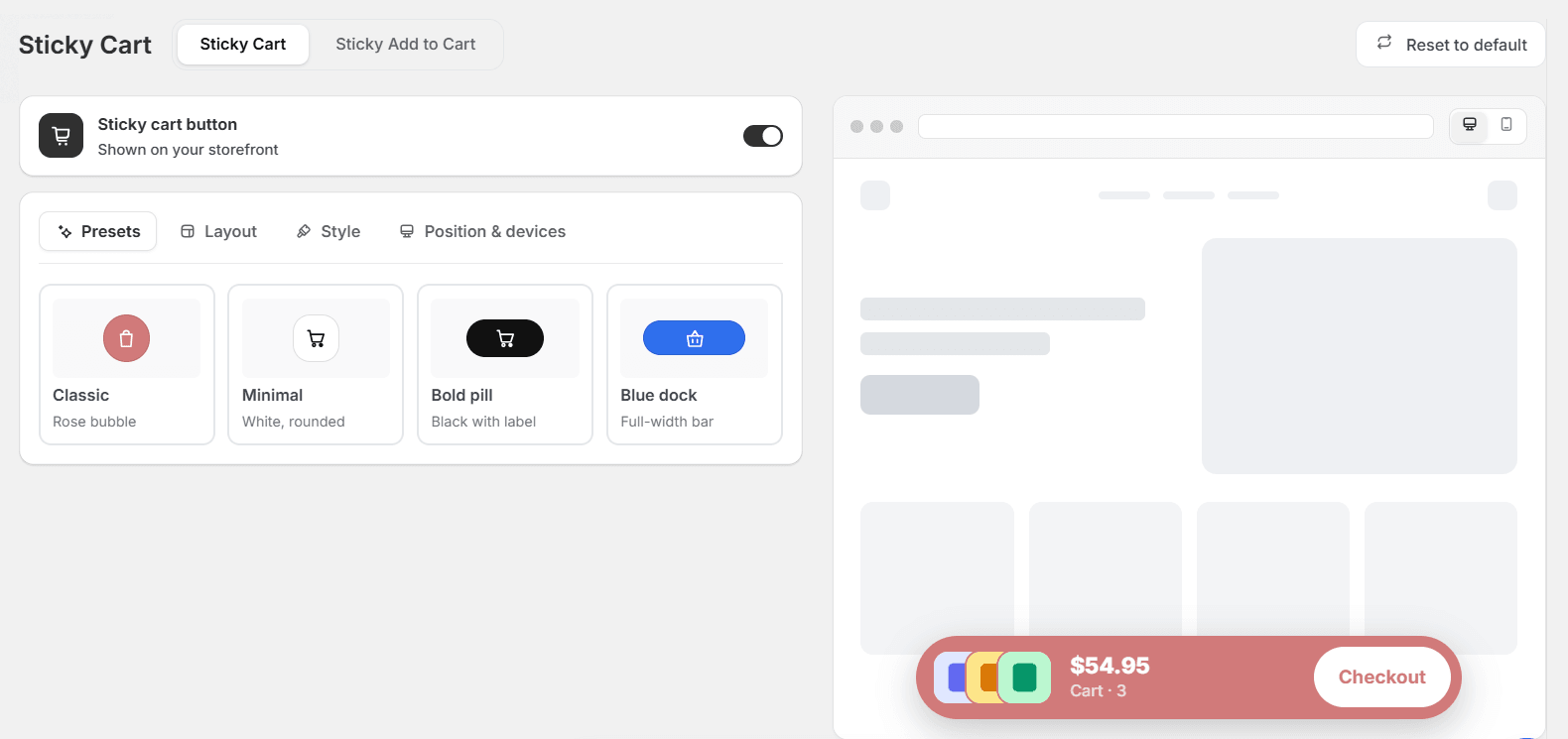
The second half is a cart button that floats over the whole store. Once something is in the cart it shows the item’s thumbnail, the total and the item count, with a Checkout button right on it. A tap on it opens the cart drawer; Checkout goes straight to checkout.
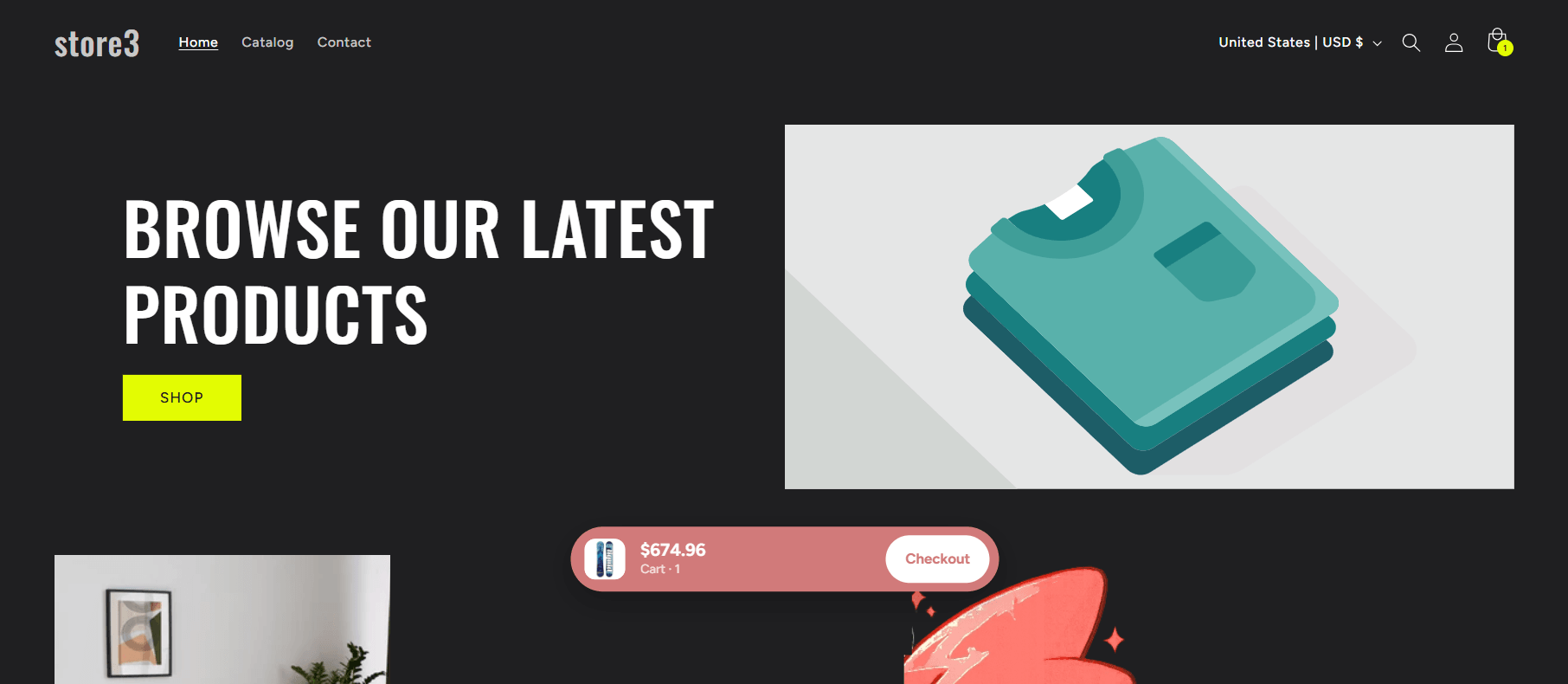

Four presets get you started: Classic (a rose bubble), Minimal (white and rounded), Bold pill (black, with a label) and Blue dock (a full-width bar). Then Layout, Style and Position & devices let you move it, recolour it and decide where it shows.
Set it up
- In Flash Cart Drawer Upsell, open Sticky Cart in the left menu.
- On the Sticky Cart tab, turn on the sticky cart button and pick a preset.
- On the Sticky Add to Cart tab, turn on the bar, choose the devices and when it shows, and switch on the other pages you want it on.
- Style both to match your theme, check the preview, and open your store on a phone to see them in place.
Good to know
- No theme code. Both are drawn by the app, so they survive theme updates and come off cleanly if you turn them off.
- They work together. The bar adds the item, the drawer opens, and the floating button keeps the cart in reach on the next page.
- Keep the bar light. The name, the price and the button are enough. Turn on the variant picker only for products that have real choices.
- Measure it. Sessions that reach checkout is the number to watch after you turn these on; for a proper comparison, run the cart as an A/B test.
Sticky Cart is part of Flash Cart Drawer Upsell. Turn it on, and the Add to cart button is never a swipe away.