A build-your-own bundle normally gets a page of its own, laid out by the app. That is great for a big “build your box” moment, but some stores want the bundle to look like every other product they sell: same header, same title, same fonts, the builder sitting where the buy button usually is.
That is what Inpage BYOB in Flash Box Builder does. It is the same mix-and-match builder as the BYOB bundle, fitted into your theme’s own product page. This post sets one up from scratch, publishes it on a real store, and covers the few things worth knowing.
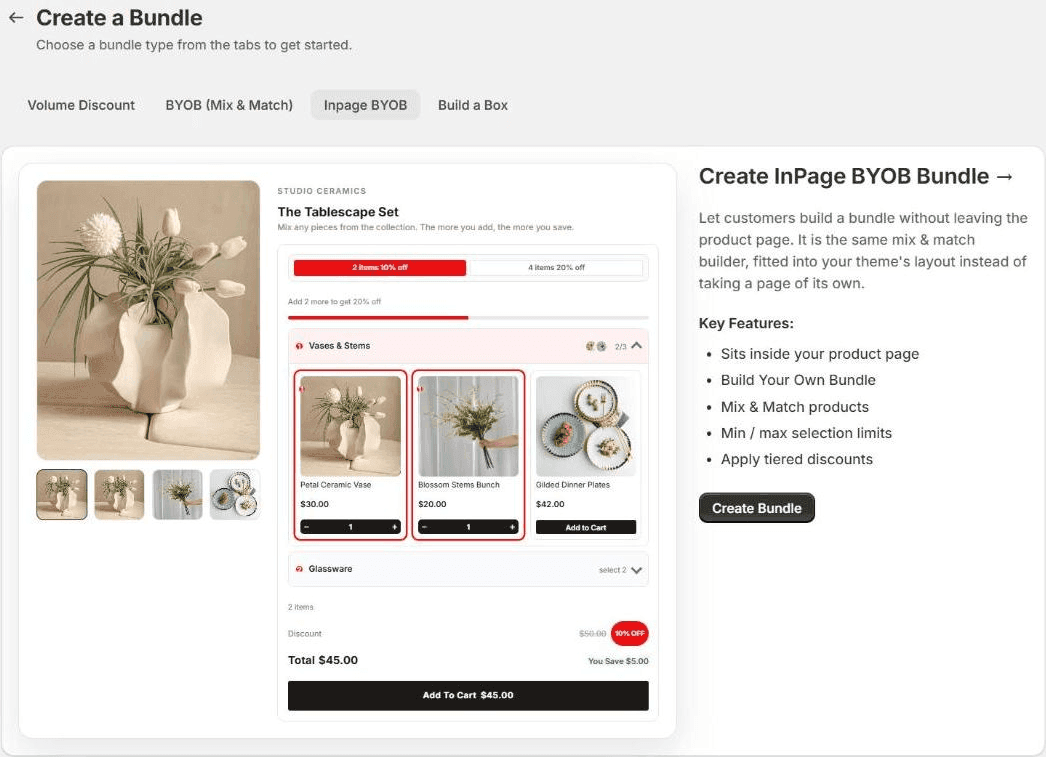
Create the bundle
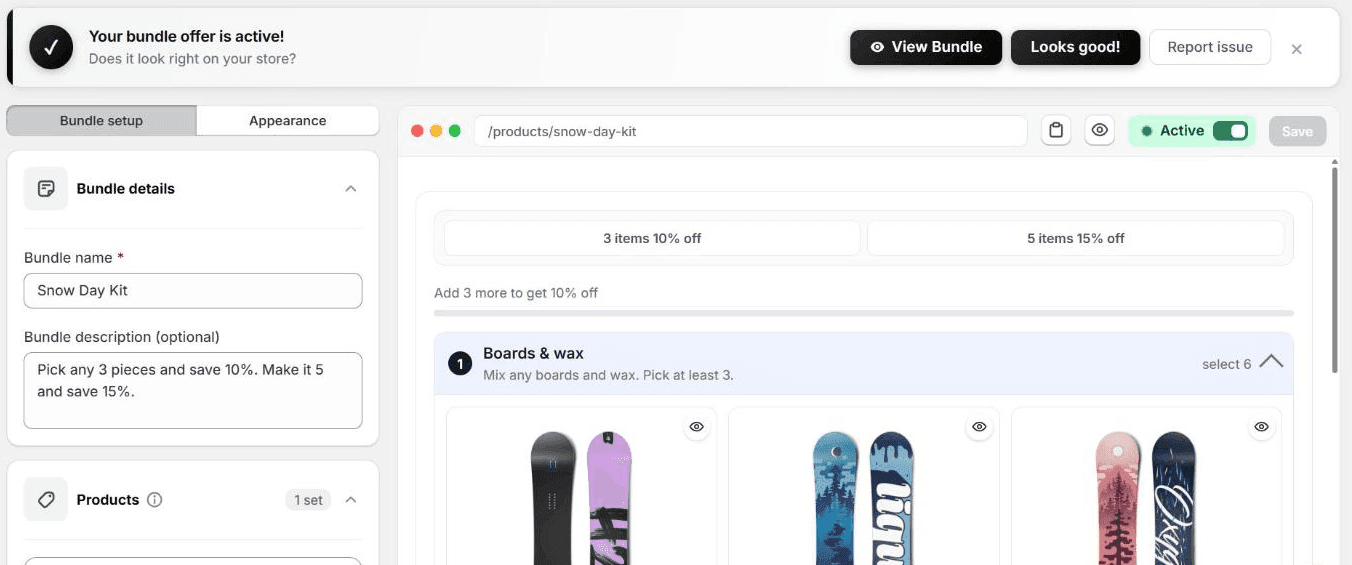
- Open Flash Box Builder, go to Bundles and click Create New Bundle.
- Pick the Inpage BYOB tab and click Create Bundle. The editor opens with settings on the left and a live preview on the right. Nothing is saved until you click Save.
- Under Bundle details, give it a Bundle name. It becomes the title of the bundle’s product page. The Bundle description becomes that product’s description, so it shows wherever your theme shows one.
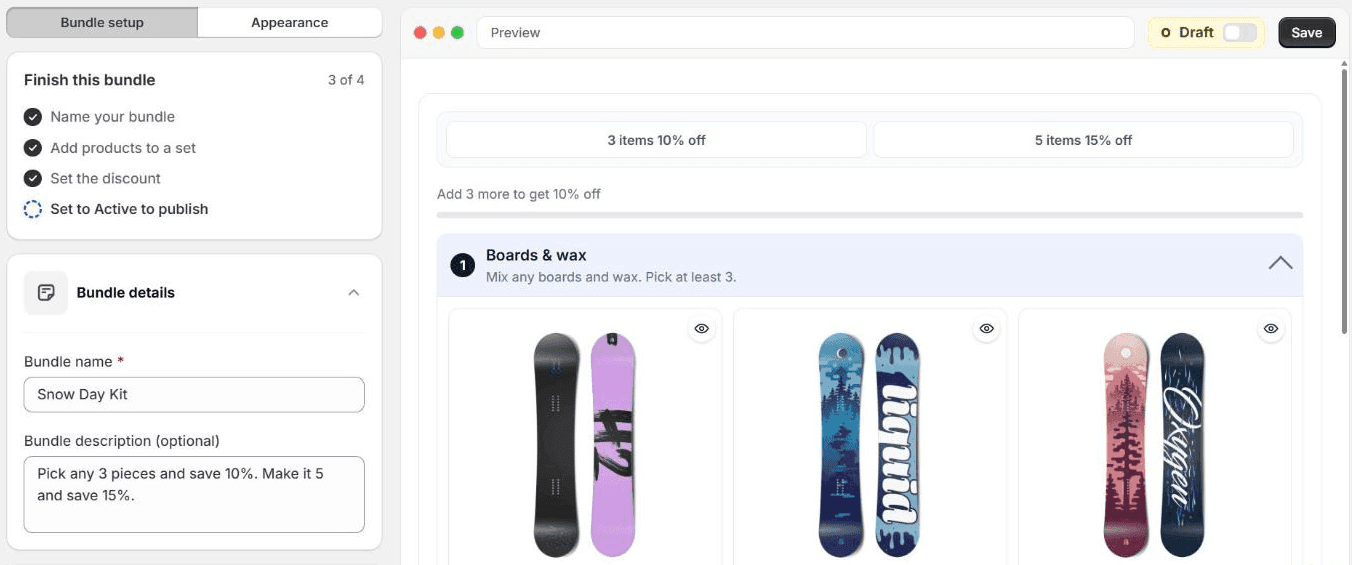
One thing to be clear on: an Inpage bundle does not attach itself to a product you already sell. When you save, the app creates a new product for the bundle, and the builder shows up on that product’s page, inside your theme’s layout.
Products, limits and the discount
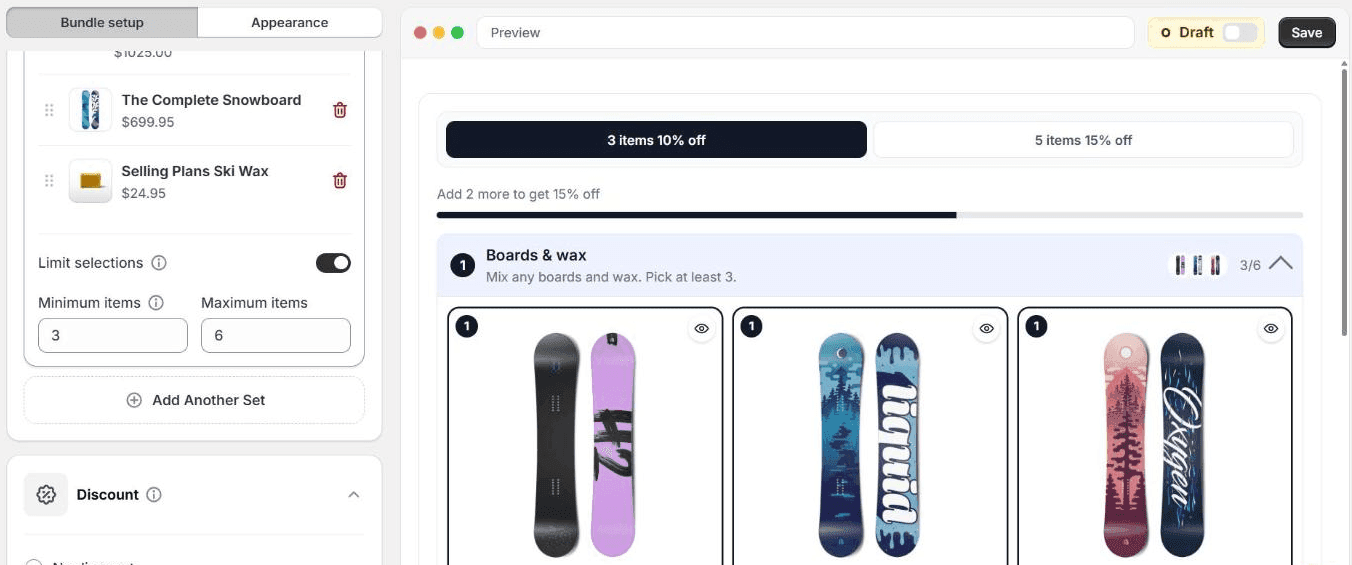
This part works exactly like a regular BYOB bundle. In Products, give the set a Set name and Set description, choose Products or a Collection, and click Select products. Add more sets with Add Another Set.
- Limit selections sets Minimum items and Maximum items for a set. The shopper cannot add the bundle to the cart until the minimum is met.
- Discount is No discount, Flat percentage off or Add tiered discounts. A new bundle starts with 3 items for 10% and 5 items for 15%.
Place it on the product page
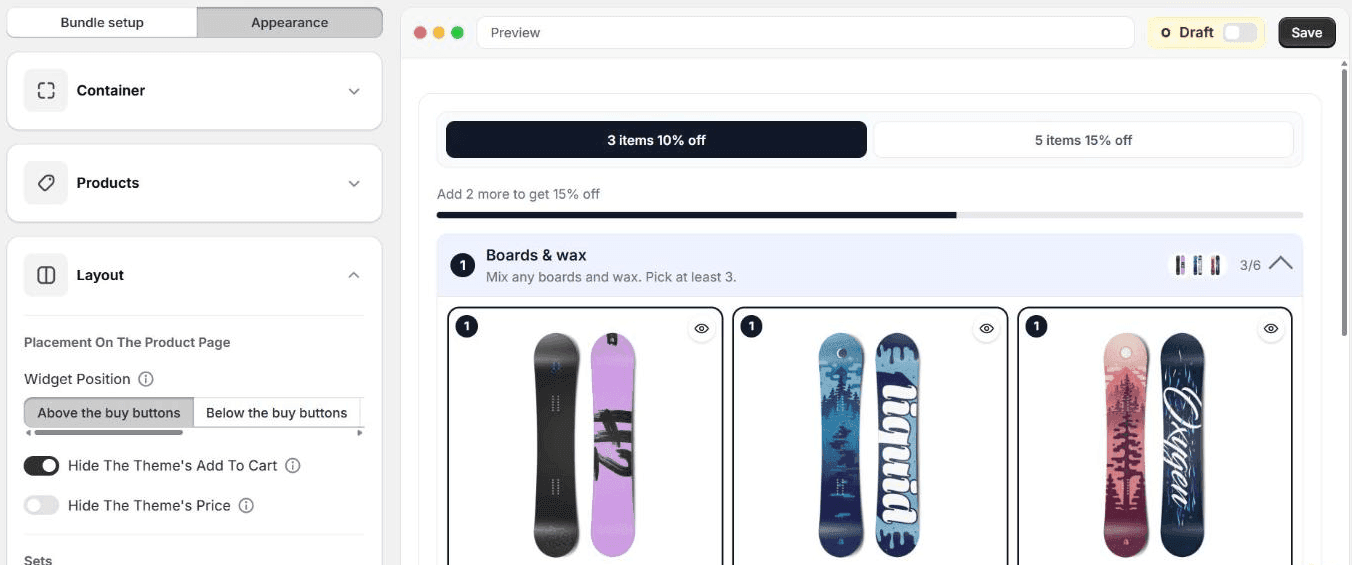
This is where Inpage differs. There are no templates to pick, because the builder takes its look from your theme’s page. Instead, the Appearance tab has Container, Products, Layout and Texts. Open Layout:
- Widget Position: Above the buy buttons (the default), Below the buy buttons, or at the top or bottom of the product details.
- Hide The Theme’s Add To Cart: on by default. Leave it on. The theme’s own button can only add the empty bundle product, not what the shopper picked.
- Hide The Theme’s Price: off by default. Switch it on, for the reason below.
- Set Display: Accordion, sets that open and close, or All sets expanded. Further down, switches show or hide each part of the builder: the tiers, the progress line, the savings, and a sticky Add To Cart on phones.
Publish it
- Flip the Draft switch beside Save to Active and click Save. The app creates the bundle’s product and tells you Your bundle offer is active!
- If the app has never been used on this theme, switch on its app embed once. On the app’s home page, Open app embed takes you to it in the theme editor. It is called BYOB Bundle Pages; it opens already switched on, so just click Save.
- Click View Bundle to see it on your store, and use the copy button by the address to link to it from your menu or a banner.
What the shopper sees
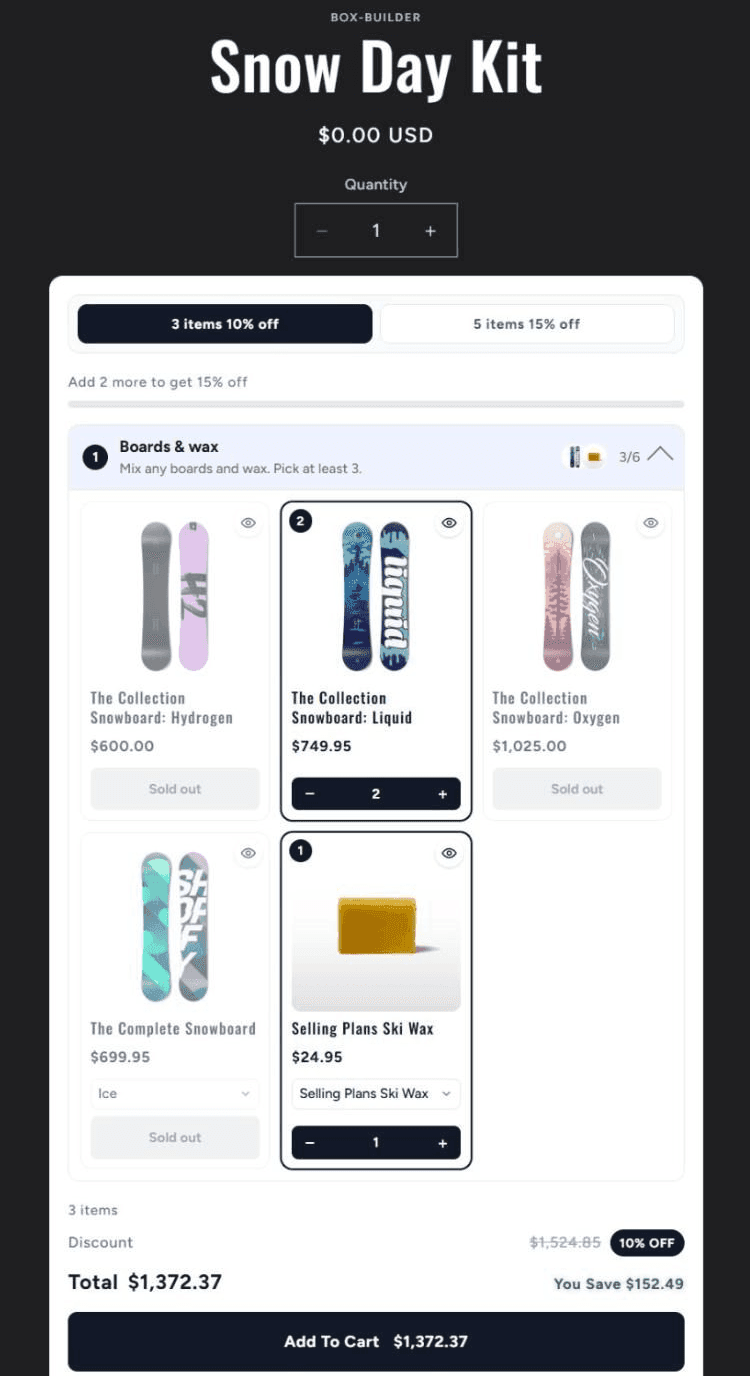
A normal product page from your theme, with the builder in the product details. Products that are out of stock show as Sold out and can’t be picked, and the total, the discount and “You Save” update with every pick.
The bundle goes into the cart as one line. At checkout, a Shopify Function, which is Shopify’s way of letting an app run its own logic inside checkout, opens that line back up into the products the shopper chose, each at its discounted price. The total on the page is the total charged.
Things to know
- The bundle product costs $0 on its own. That is on purpose: the price comes from what the shopper picks. It does mean your theme shows $0.00 on the page and in collections and search. Switch on Hide The Theme’s Price, give the bundle a picture with Add product image, and don’t edit its price in Shopify, because the app sets it back to $0 on the next save.
- Your theme stays your theme. Anything the theme puts in the product details, like its quantity box, still shows around the builder.
- Percentages only, flat or tiered, and one builder per page.
- Collections are read when you save. A set built from a collection shows up to 50 of its active products; save the bundle again after adding new ones.
Inpage BYOB is live for every store on Flash Box Builder. If you set one up and it sits somewhere odd on your theme, send me the page and I’ll take a look.