“Pick any 3, save 10%” is a lovely offer and an awkward one to run on Shopify. A fixed bundle decides for the shopper. A discount code hides the deal until checkout. Neither lets someone stand in front of your range and choose their own three.
A BYOB bundle in Flash Box Builder does exactly that. BYOB is short for build your own bundle: you choose the products, the shopper mixes any of them, and the discount grows as the bundle does. This post sets one up from scratch, publishes it, and covers what it does not do yet.
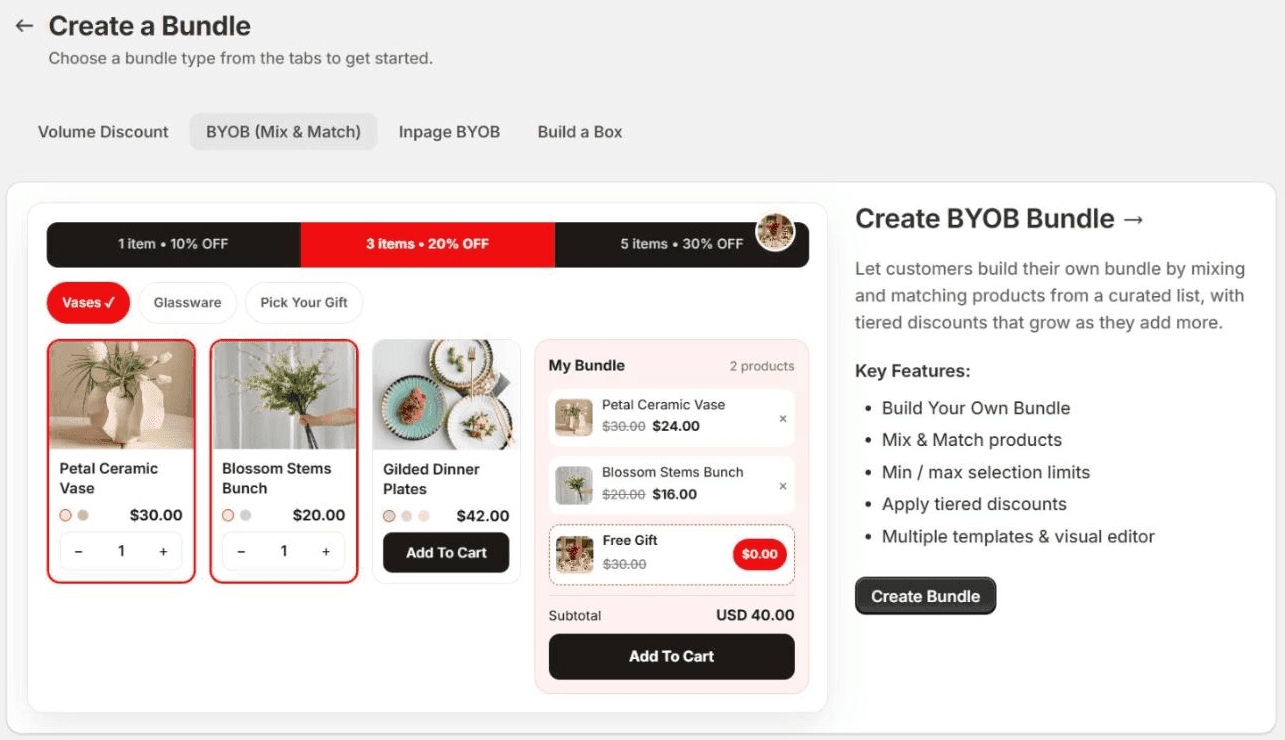
Create the bundle
- Open Flash Box Builder, go to Bundles and click Create New Bundle.
- Pick the BYOB (Mix & Match) tab and click Create Bundle. The editor opens with settings on the left and a live preview on the right. Nothing is saved until you click Save, so feel free to try things.
- Under Bundle details, give it a Bundle name. It becomes the heading of the page. The Bundle description sits under it, which is a good place to say the deal in one line.
- Bundle display is Full Page, every set on one scrolling page, or Multi-step, one set at a time with Previous and Next buttons. Start with Full Page.
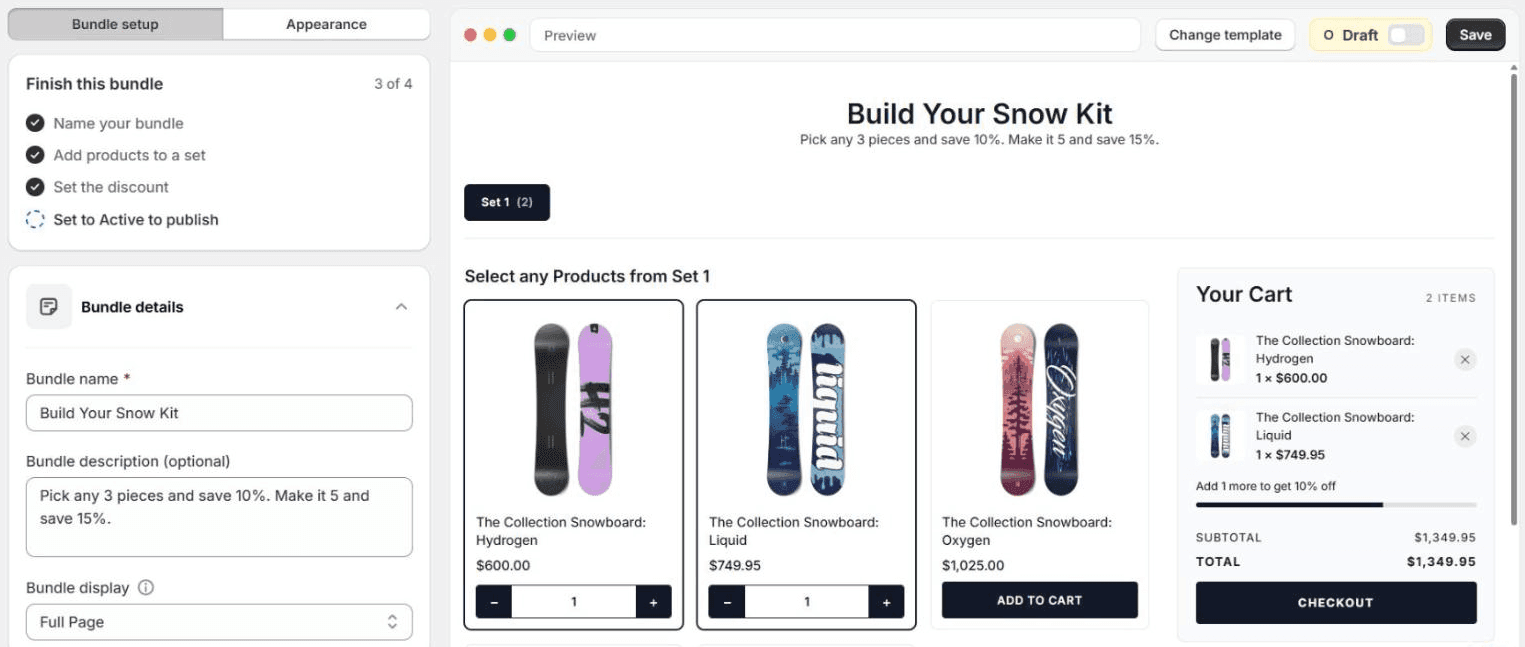
Choose what shoppers pick from
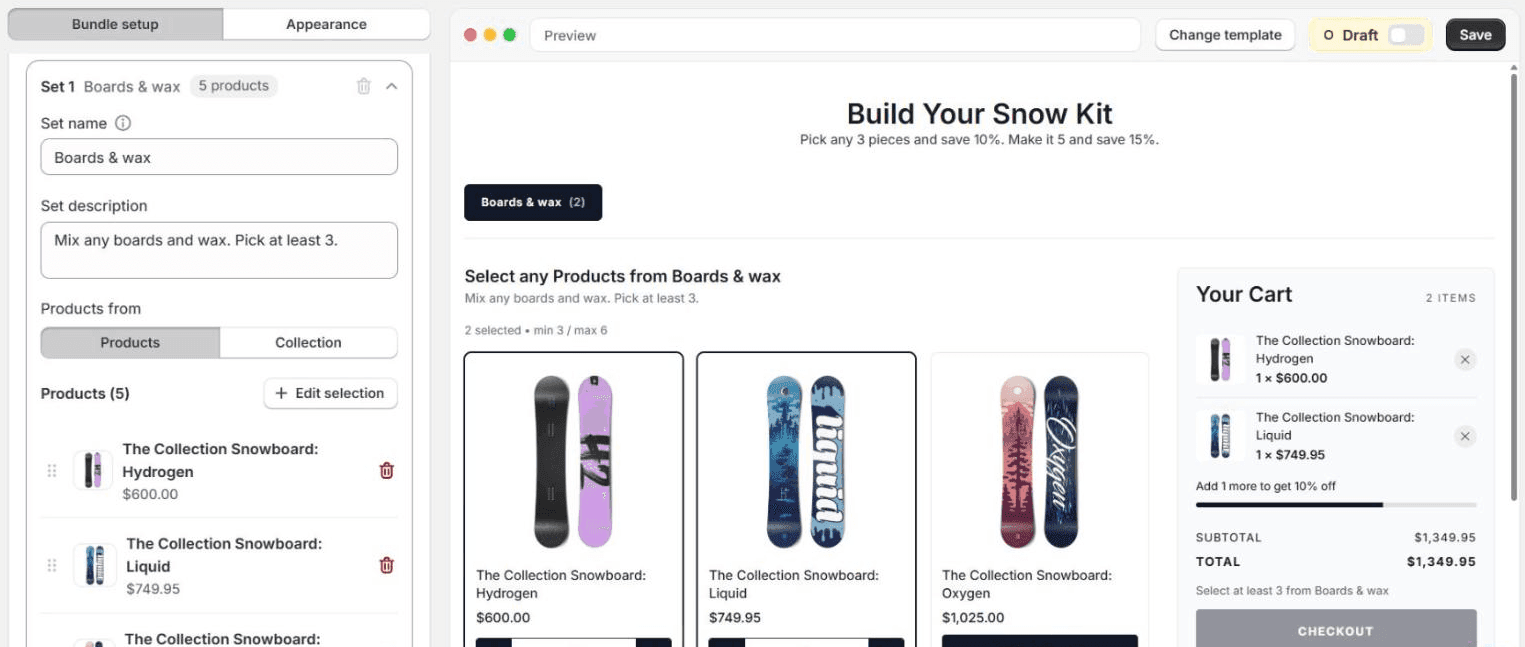
The products live in sets. A simple bundle has one set. Several sets let you shape it, like one base and two extras, and each set gets its own tab on the page.
- In Products, open Set 1 and give it a Set name and a short Set description. Shoppers see both above the grid.
- Under Products from, choose Products or Collection, then Select products and tick them in Shopify’s picker. Drag them to set the order.
- Switch on Limit selections to set Minimum items and Maximum items for the set. Checkout stays locked until the minimum is met, and the page tells the shopper what is missing.
Set the discount
Under Discount, pick No discount, Flat percentage off for one rate on the whole bundle, or Add tiered discounts. A tier is a Minimum quantity and a percentage. A new bundle starts with two, 3 items for 10% and 5 items for 15%, and Add tier adds more. The shopper gets the best tier they have reached.
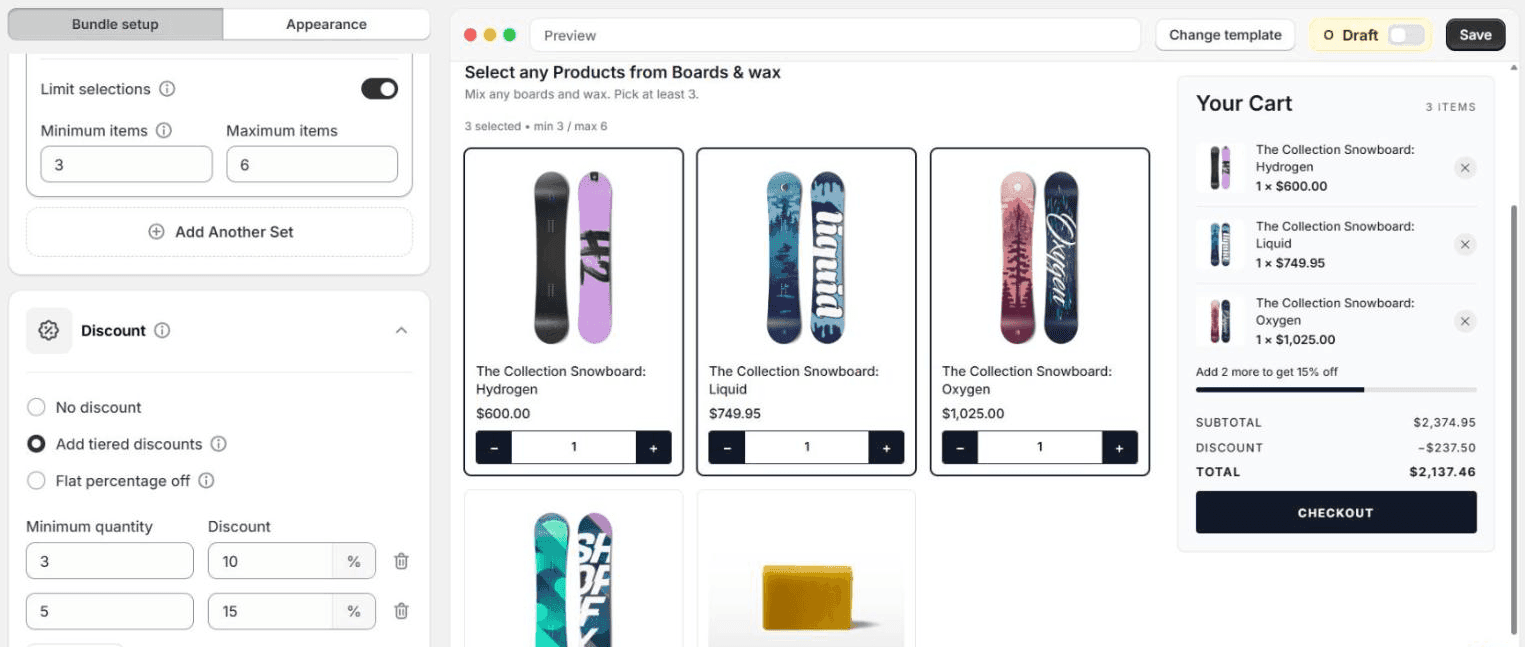
That “Add 2 more to get 15% off” line is the part that sells the fourth item. You can rewrite it under Appearance, in the cart settings.
Make it look like your store
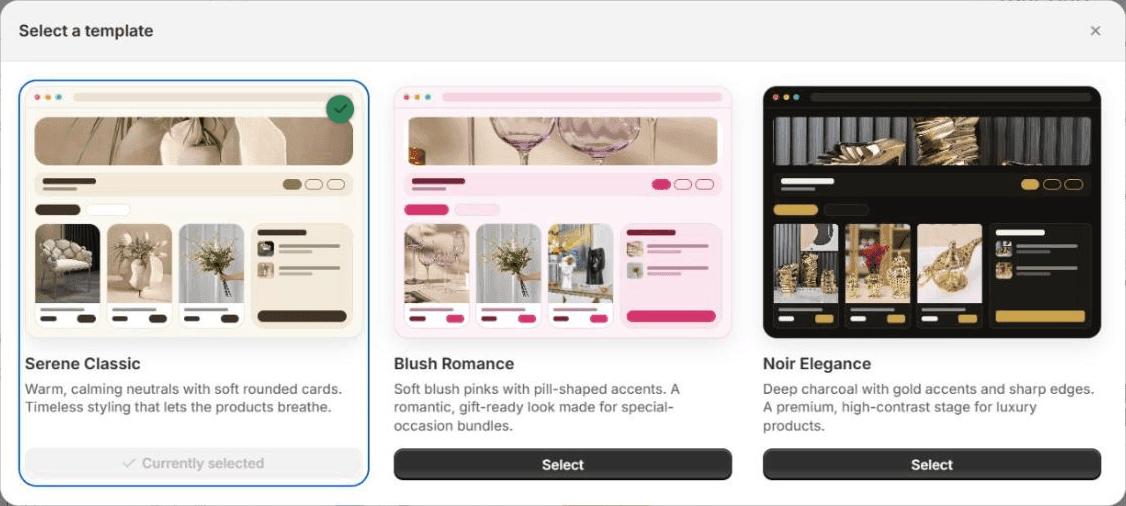
Click Change template above the preview and choose Serene Classic, Blush Romance or Noir Elegance. Then the Appearance tab lets you start from a palette and change the accent, background, card, text and border colours, the corners, and the banner, stepper, product and cart sections one by one.
Publish it
- Click Save. The bundle is created as a Draft, and the app makes a Shopify product for it. That product’s page is where the builder lives.
- Flip the Draft switch beside Save to Active and save again.
- If you have never used the app on this theme, switch on its app embed once. On the app’s home page, Open app embed takes you to it in the theme editor. It is called BYOB Bundle Pages; switch it on and click Save.
- Use Preview bundle to open the page, and Copy bundle link to put it in your menu or on a banner. Add product image gives the bundle a picture in collections and search.
What the shopper sees
The bundle page shows your sets, the products to choose from, and a cart beside them that fills as they pick, with the next tier and the discount spelled out. On a phone, the total and the button sit in a bar at the bottom of the screen.
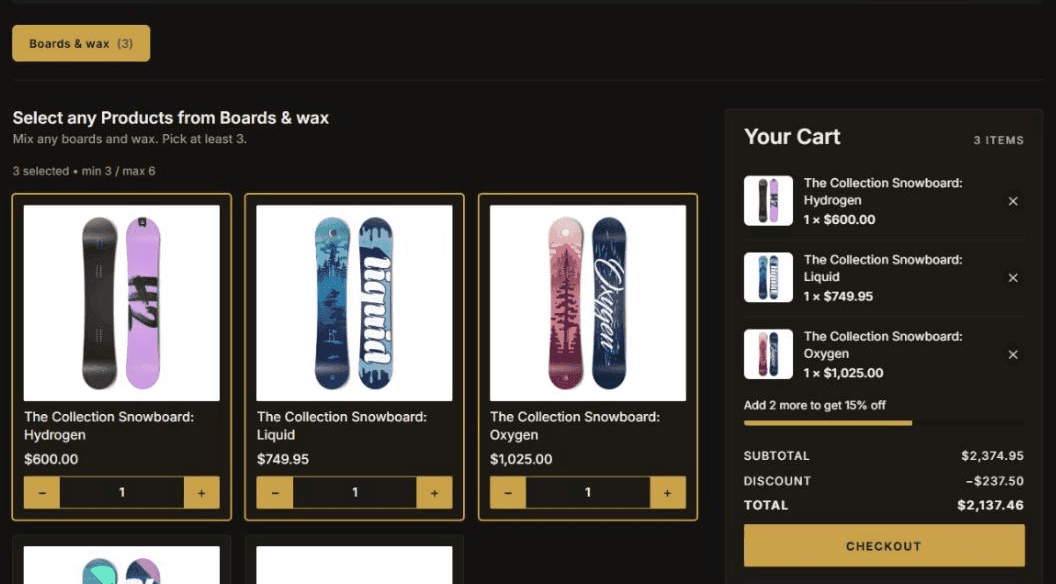
The bundle goes into the cart as one line. At checkout, a Shopify Function, which is Shopify’s way of letting an app run its own logic inside checkout, opens that line back up into the products the shopper chose, each at its discounted price. The builder and checkout use the same pricing, so the total on the page is the total charged.
Things to know
- Percentages only. BYOB discounts are a percentage, flat or tiered. For a fixed price per box, use the Build a Box type instead.
- Collections are read when you save. A set built from a collection shows up to 50 of its active products. Add products to the collection later and they appear after you save the bundle again.
- Two switches. The page only shows the builder when the BYOB Bundle Pages embed is on and the bundle is Active. If it is missing, check those first.
- Want it inside a product page? BYOB takes over its own page. Inpage BYOB puts the same builder inside one of your existing product pages instead.
BYOB bundles are live for every store on Flash Box Builder. If you build one and the page does something you did not expect, send me what you tried.