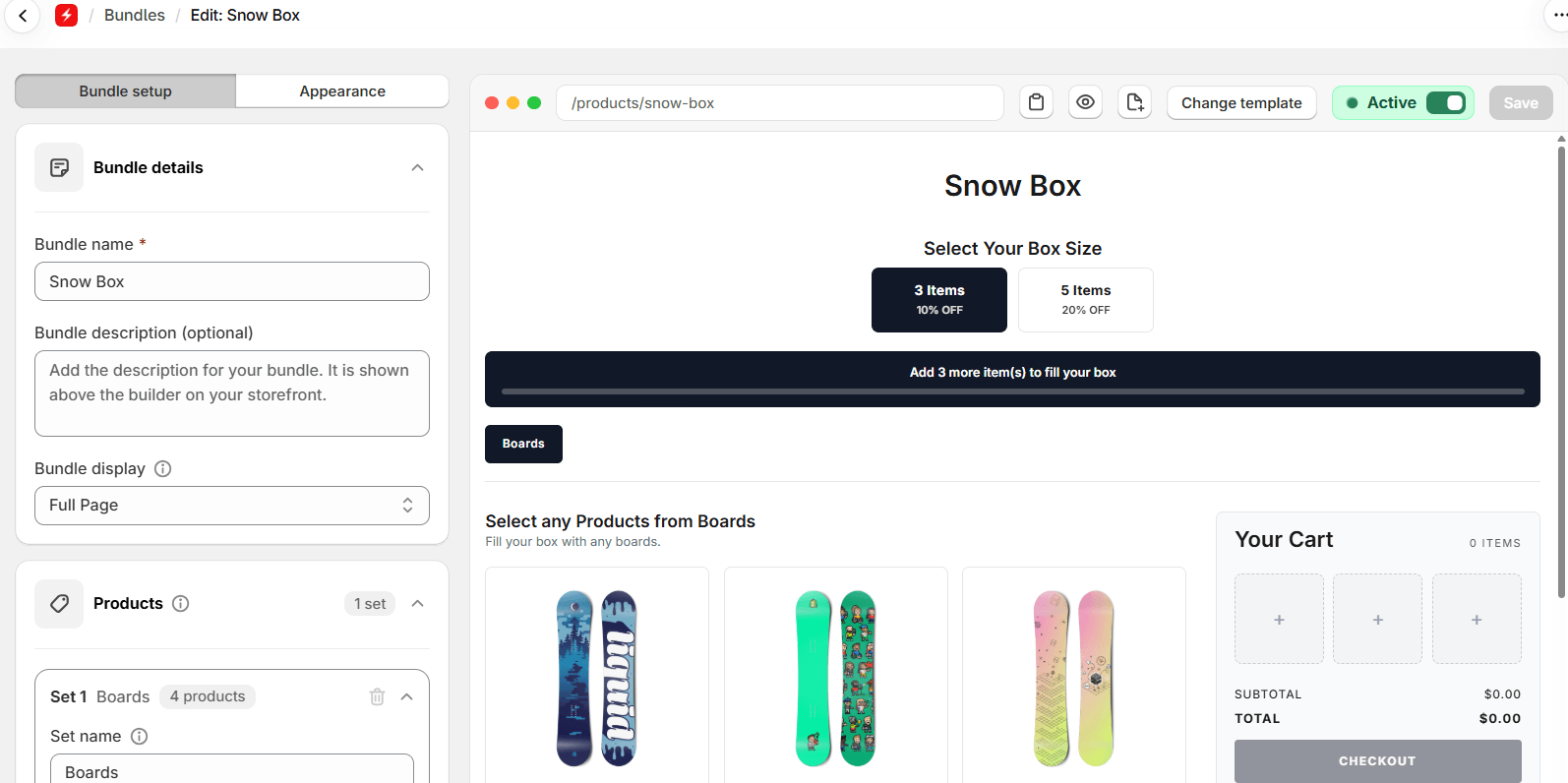
A Build a Box bundle sells a box, not a list of products. The shopper picks a box size, fills it, and the box’s discount comes off once it is full. Until now that builder lived only on its own bundle product’s page.
Now the Flash Bundle theme block puts a Build a Box anywhere in your theme: a landing page, a collection, the home page. It comes whole, with the box sizes, the progress bar, the products and the box cart.
Why a box works well on a page
A Build a Box shows the deal before the products. The box sizes sit at the top with their discounts on them, and a bar under them counts what is left to fill. Shoppers know the goal from the first look, and the box cart beside the products shows each pick dropping into a slot. On a page that already tells a story, a gift guide or a season’s kit, that goal is the call to action.
Set it up
- In Flash Box Builder, open your Build a Box bundle and click the page icon beside Preview (Add to another page).
- The theme editor opens on a page template with the Flash Bundle block already added. In the block’s settings, click Bundle or product and pick the bundle’s own product (its vendor is Box-builder).
- Click Save.
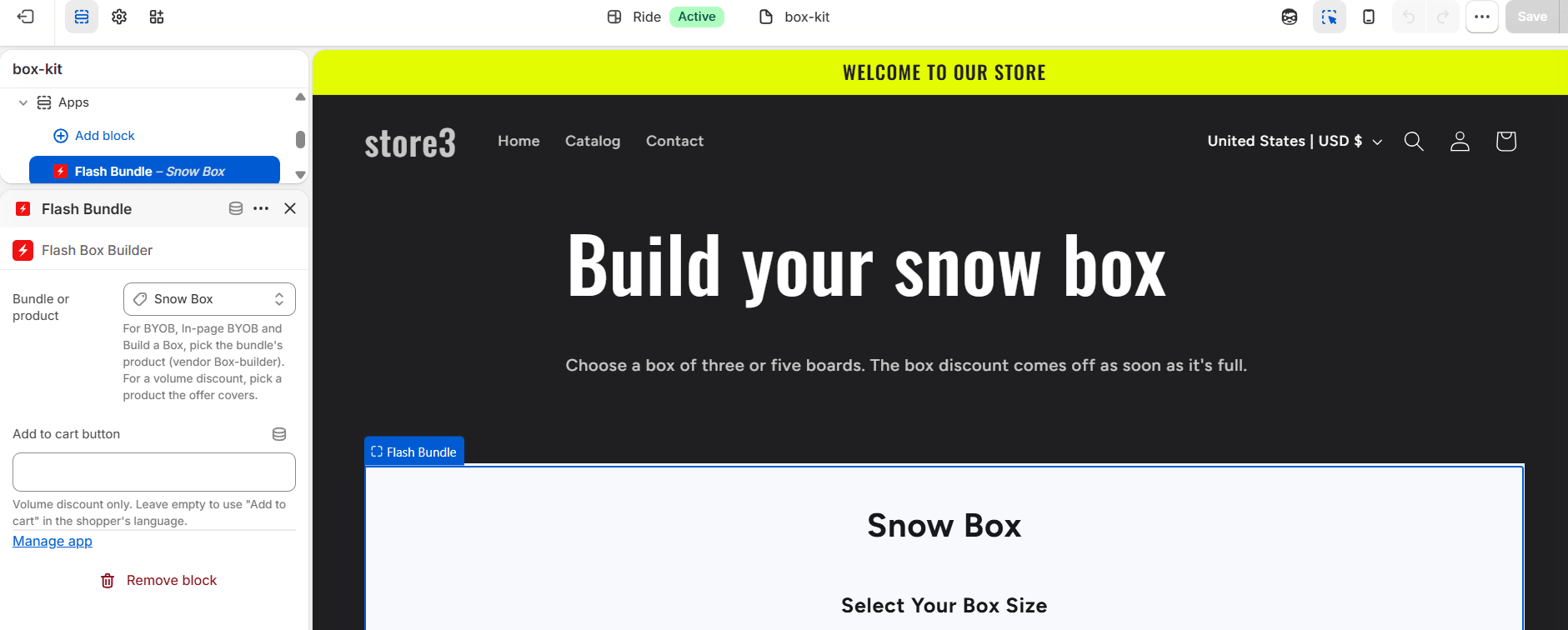
A block belongs to a template, not to a page, so put it on a template of its own if you want it on one page only: in the theme editor’s template menu, go to Pages and click Create template, then set that page’s Template in Online Store > Pages.
What the shopper sees
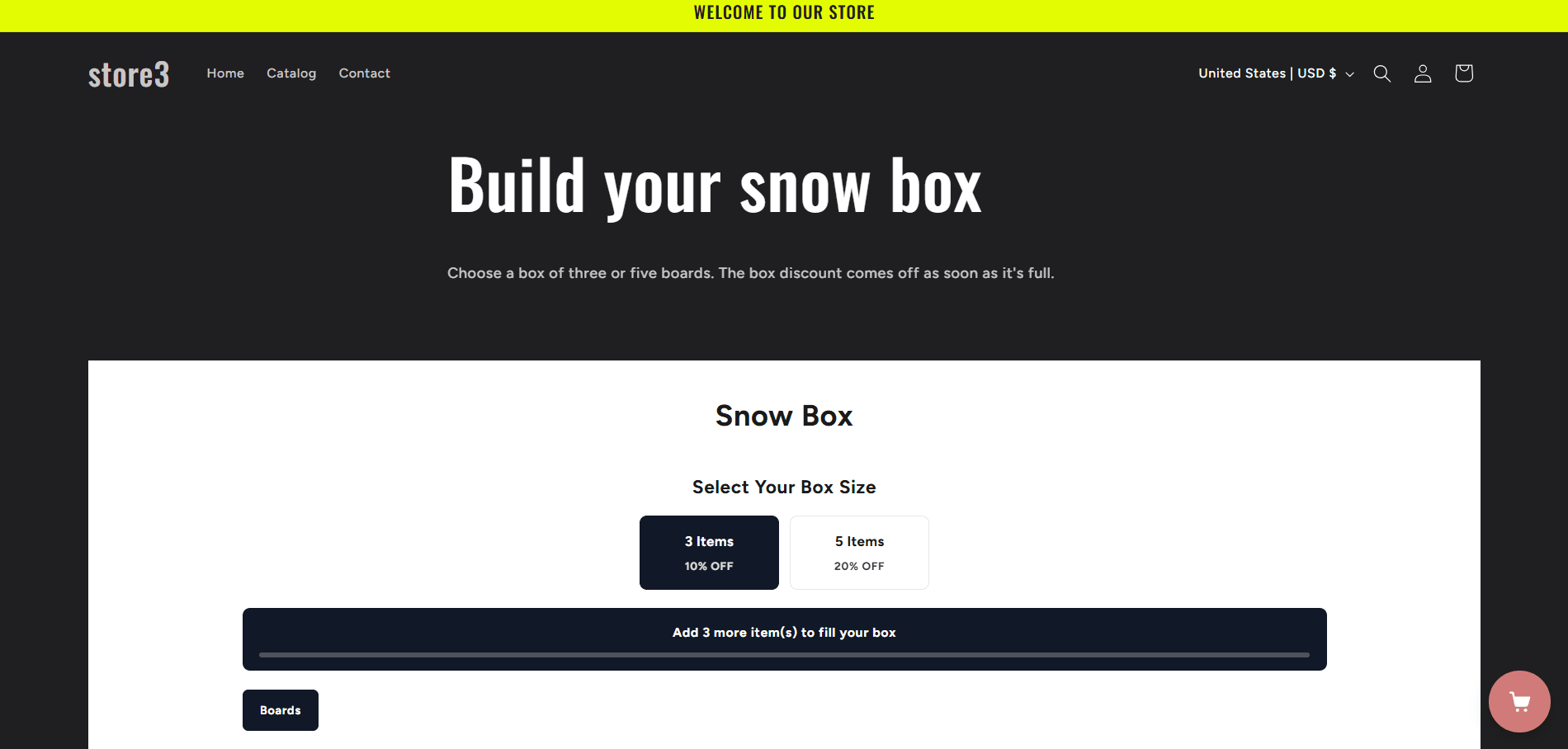
On my test page, Build your snow box, the builder sits under the page’s heading and text, with the smallest box picked to start.
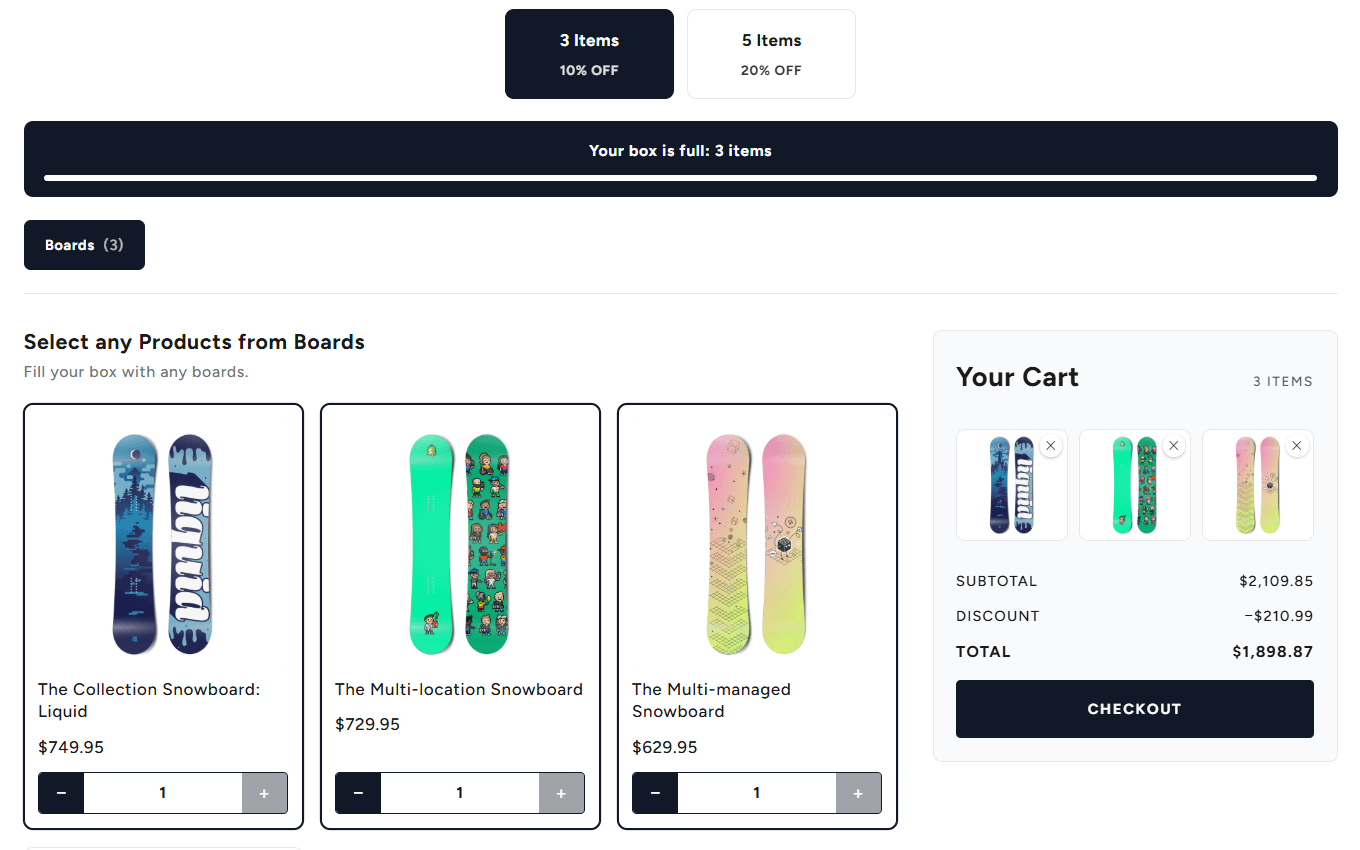
Each Add To Cart drops a board into the box cart. When the last slot fills, the bar says the box is full and the cart shows the subtotal, the box discount and the total.
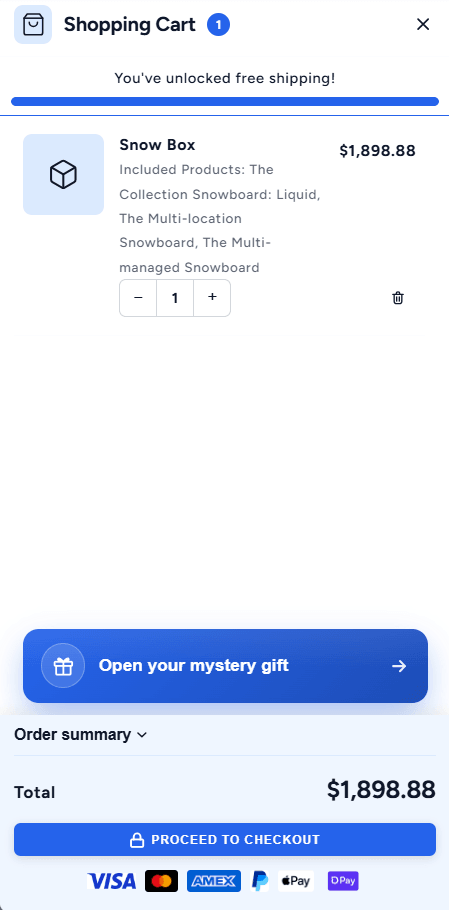
Checkout puts the whole box in the cart as one line, with its boards listed under it.
Things to know
- It needs an Online Store 2.0 theme. Dawn, Ride, Sense and the other current themes all are. Older themes have no place for app blocks at all.
- Page builders are different. If your page was made with PageFly, GemPages or similar, the theme editor cannot place a block inside that content. It can still go above or below it in the template.
- One bundle, every page. The block shows the bundle as you set it up in Flash Box Builder, so a new box size or product in the bundle editor shows everywhere the block is.
- On the bundle’s own product page the block stays out of the way, so the builder is never drawn twice.
- The other bundle types go on a page the same way: see a BYOB bundle on any page, an Inpage BYOB on any page and a volume discount on any page.
The Flash Bundle block is live for every store on Flash Box Builder. Put your box on the page where shoppers are already deciding what to buy.