A store owner had already built their own bundle page: a grid of treats, the theme’s own Add to cart buttons, a line saying the discount is applied at checkout. They did not want my builder taking that page over. They wanted one thing on it, a box on the right that tells the shopper how close they are to the next discount.
Until now Flash Box Builder could not do that. Every builder lived on a product page: the box builder took over its bundle’s page, and a volume discount sat on the page of the product it discounts. A page you made yourself, a collection, the home page: none of them could show anything.
Now there are two blocks you can put on any page of your theme.
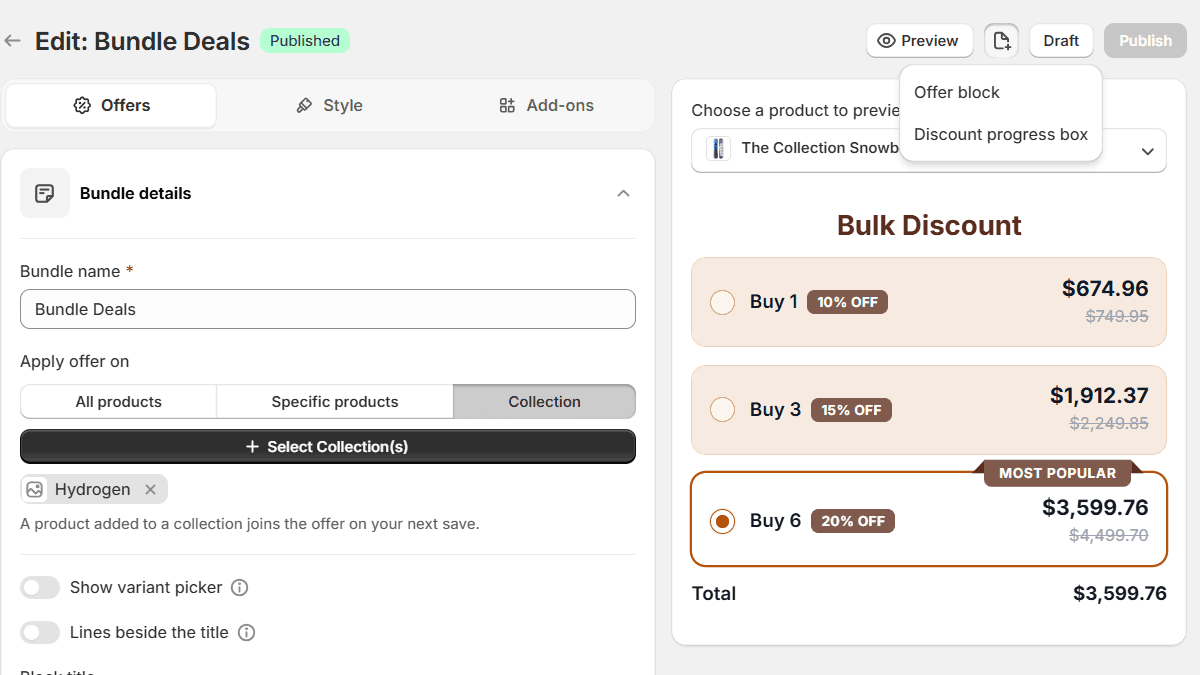
The two blocks
- Flash Bundle puts any of your bundles on the page: a BYOB builder, an in-page builder, a Build a Box, or a volume discount ladder. Off a product page there is no theme button for a ladder to use, so the ladder brings its own Add to cart, and opens your cart drawer afterwards like the other builders do.
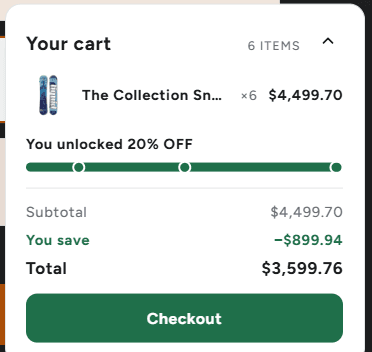
- Flash Discount progress is the box that store owner asked for. It counts what is in the cart for one volume discount and says what the next step is worth: “Add 3 more to get 20% OFF”. It lists the items, the saving and the total, and has a Checkout button.
Both are theme blocks. A block is a piece of an app you place yourself in Shopify’s theme editor, the same way you add a slideshow or a newsletter form.
Set it up
- In Flash Box Builder, open the bundle or volume discount you want on the page and click the page icon beside Preview (Add to another page). On a volume discount, choose Offer block or Discount progress box.
- The theme editor opens on a page template with the block already added. In its settings, pick the product it is for. For a BYOB, in-page or Build a Box bundle, that is the bundle’s own product. For a volume discount, any product the offer covers.
- For the progress box, choose a Layout: In the section, or Floating on the right like a small cart.
- Click Save.
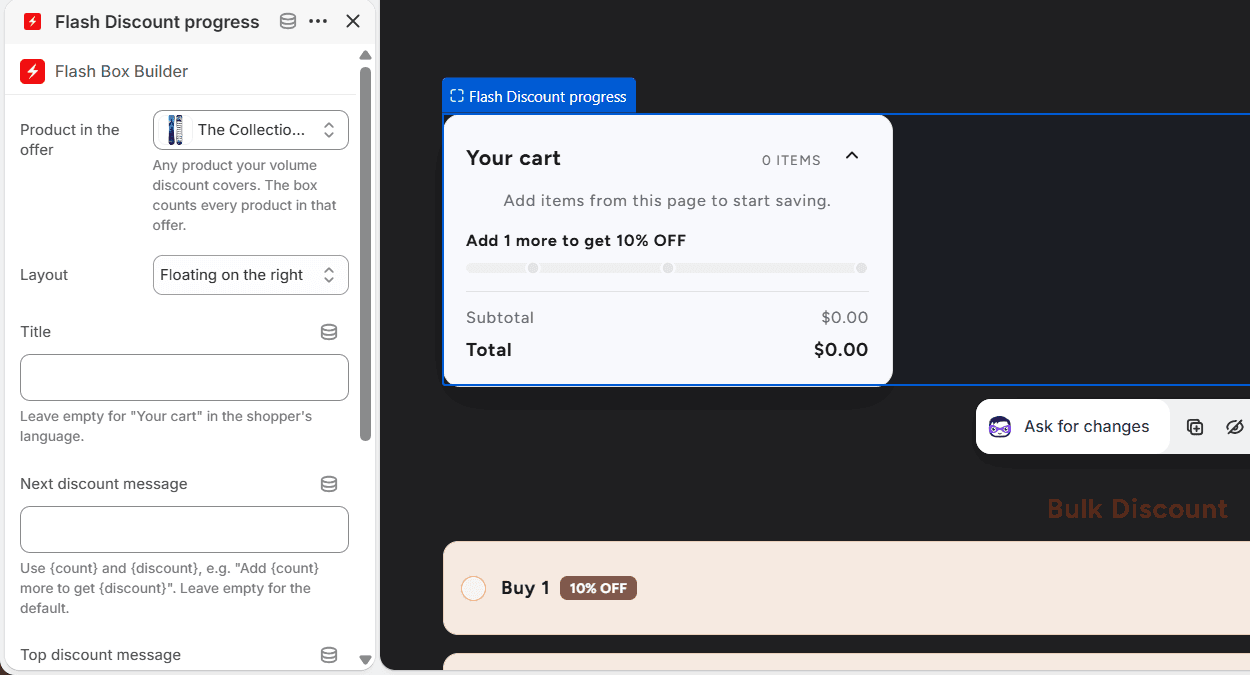
One thing worth doing first. A block belongs to a template, not to a page, so a block on the default page template shows on every page that uses it. If you want it on one page only, make a template for it: in the theme editor’s template menu, go to Pages and click Create template. Then open that page in Online Store > Pages and set its Template to the new one.
What the shopper sees
On my test page, a collection of snowboards with the theme’s own buttons, and the progress box floating beside it. The offer is 10% off one, 15% off three, 20% off six.
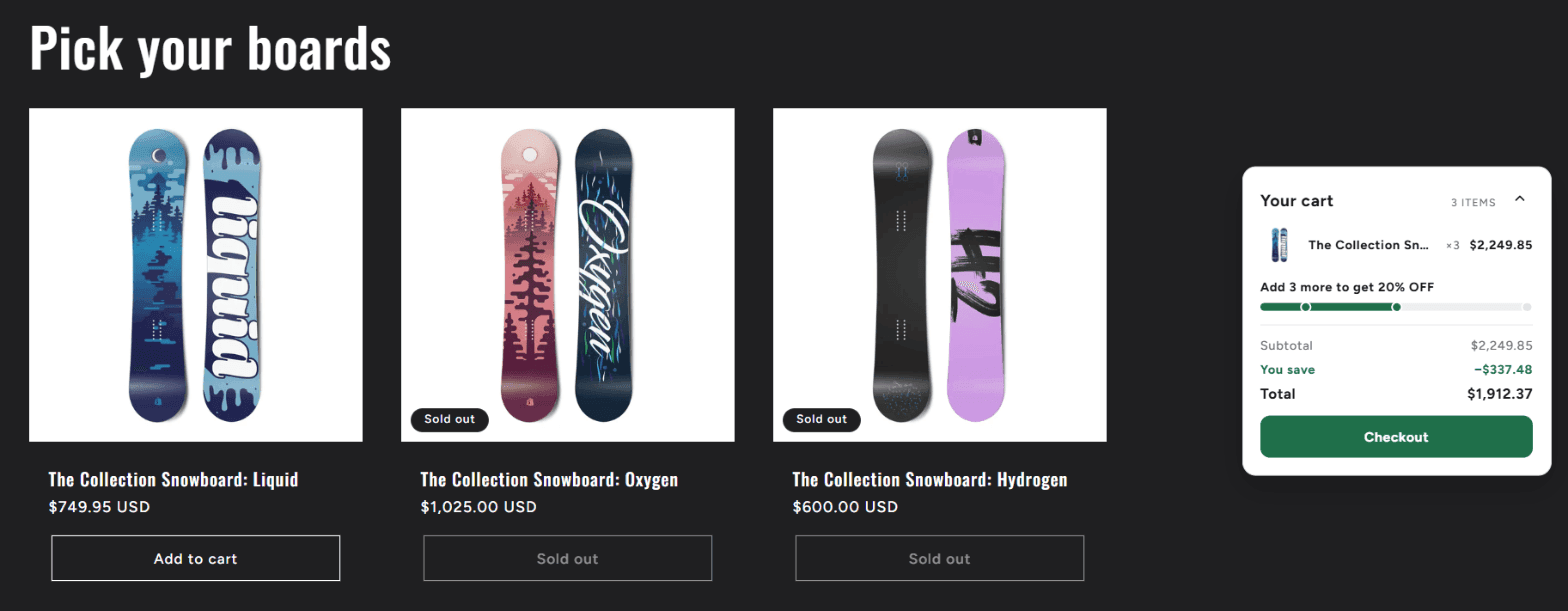
The box does not care how things get into the cart. The theme’s button, the cart drawer’s plus button, another app: whenever the page changes the cart, the box draws itself again. A volume ladder placed with the Flash Bundle block works next to it, with its own button.
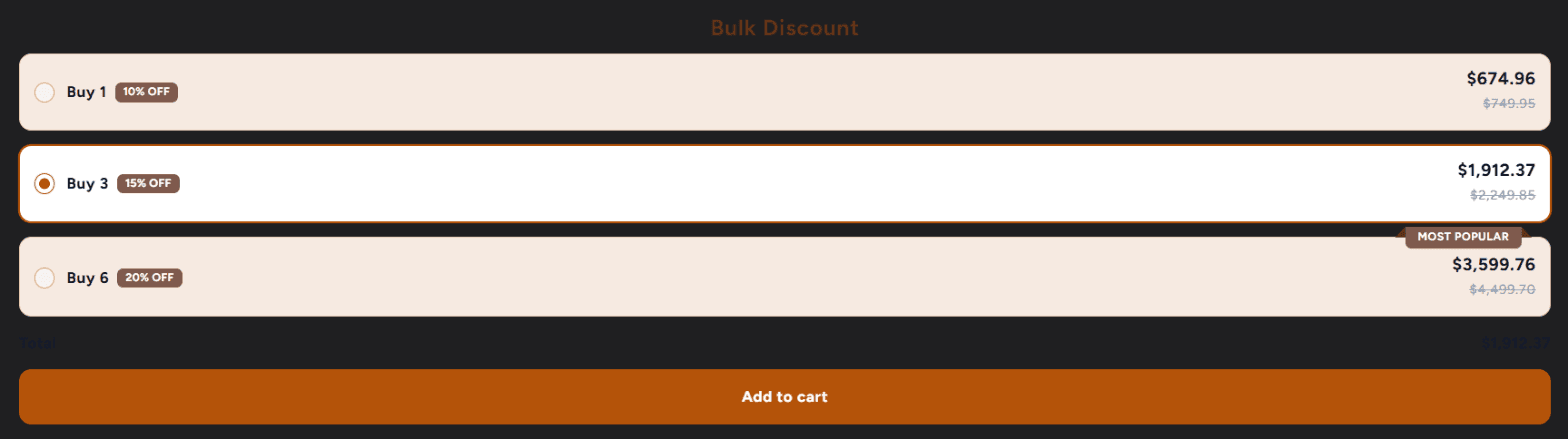
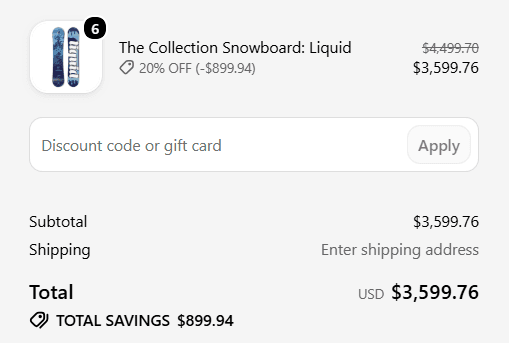
Adding the Buy 3 row took the cart to six, and the box moved to the top step. The total it shows is the total at checkout, because it counts the cart with the same rules the discount uses there.
Things to know
- It needs an Online Store 2.0 theme. Dawn, Ride, Sense and the other current themes all are. Older themes have no place for app blocks at all.
- Page builders are different. If your page was made with PageFly, GemPages or similar, the theme editor cannot place a block inside that content. It can still go above or below it in the template, and a floating box does not mind where it sits.
- The box follows volume discounts only. It counts the products in one volume offer. It does not know about discount codes or Shopify’s own automatic discounts, so set the offer up in Flash Box Builder (a Collection works well for a page like this).
- Pack offers have no progress. An offer tied to variants, like a 2-pack, is a price for that pack rather than a step to climb, so the box leaves it out.
- On a phone the floating box docks to the bottom of the screen, folded to the message and the bar, and opens with a tap.
Both blocks are live for every store on Flash Box Builder. If you have a page you built yourself and want a deal on it, this is how.