You open the Shop app on your phone and type your own store’s name. There they are. Your products, sitting in a place you never put them. So you go to your admin, untick Shop on every product, and look again.
Still there.
Short answer: you can stop people from buying inside Shop. You can hide single products. You cannot take your whole store out of Shop. Shopify’s own help page says so in one flat sentence.
You didn’t miss a setting. The switch you were looking for was never built.
This blew up in a 270-comment fight on r/shopify, started by a store owner with 20 years in e-commerce. Half the replies said “just untick the channel.” The other half said “I did, and my products are still showing.” Both halves were telling the truth. They were talking about different switches.
There are three of them. Let’s go through each one, then the two other Shop things that land in your support inbox.
First, what Shop is
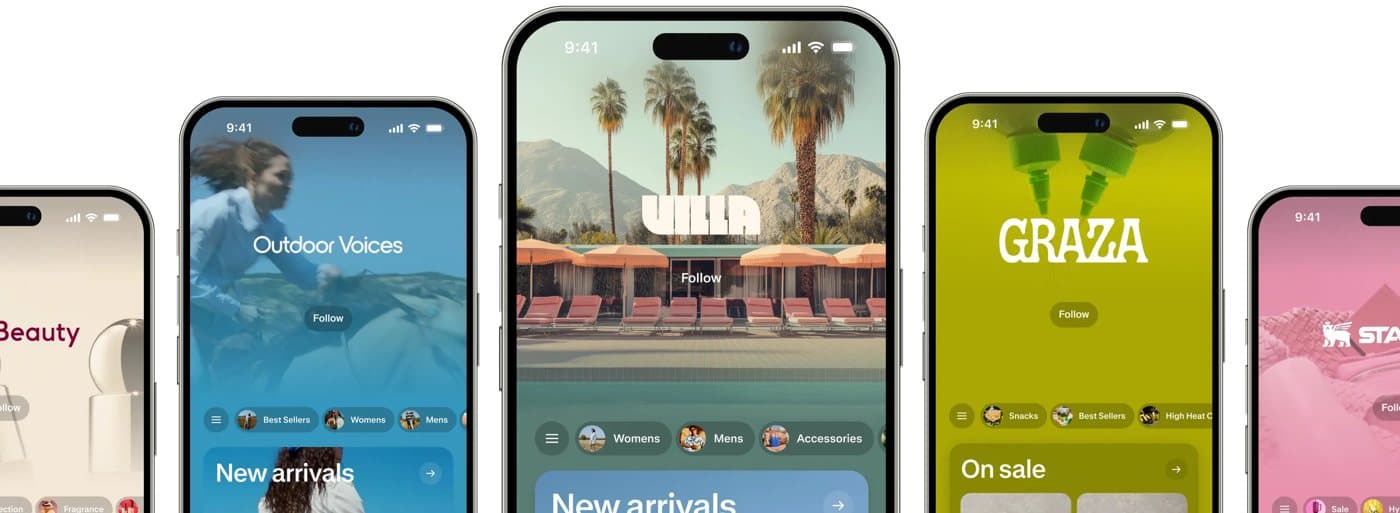
Shop is Shopify’s own shopping app and website. People use it to track packages, pay with Shop Pay and find stores.
Now the part most guides skip, and the reason the tick box let you down.
Shop does not look at your sales channel ticks to decide what to show. It reads something called Shopify Catalog. That is one big list of product info that Shopify builds from stores on its platform: titles, pictures, prices, stock.
You never signed up for it. If a product is live on your online store and meets the rules, it goes in by itself.
So hold on to one idea for the rest of this post.
A sales channel tick decides where a product can be bought. The Catalog decides where it can be seen.
Once you know that, the whole argument makes sense.
The first switch: unticking the Shop channel
This is the advice you get first, from everyone, with great confidence.
- In your admin, go to Sales channels > Shop.
- In the Catalog section, click the Products selling directly in Shop row.
- Tick the products you want and click Bulk edit.
- Deselect Shop in the Sales channels drop-down menu, then click Save.
What happens next surprises people.
The listing stays in Shop. Photos, price, description, all of it. The only change is the button. It now reads “Purchase at” plus your store name, and it opens the product on your own site.
Shopify’s help page is blunt about it. Unpublishing a product from Shop does not stop it from showing there.
So the people who said “untick it” were right that the tick exists. The people who said “it’s still there” were right about the result.
One small thing before you panic-refresh. Shopify says a change can take a few minutes to show up in Shop.
The second switch: one setting for the whole store
Maybe you’re fine with being seen in Shop. You just want the sale to happen on your site, in your checkout, with your thank-you page.
Then skip the product-by-product work. There is one store-wide setting.
- Go to Sales channels > Shop.
- Click Settings.
- In the Sell with Shop section, pick Link to online store.
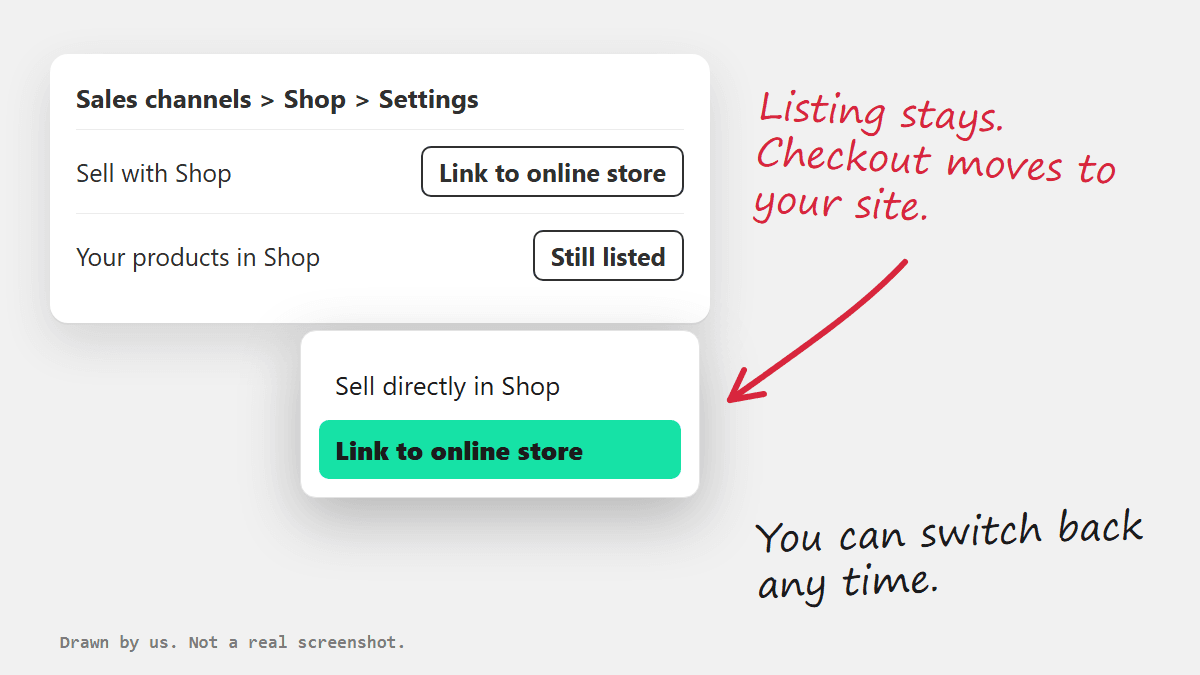
Your products stay findable in Shop. Every buyer gets sent to your store to pay.
For most stores that care about owning the customer, this is the one I’d pick. Shop works like a signpost and the sale stays yours.
The third switch: really hiding a product
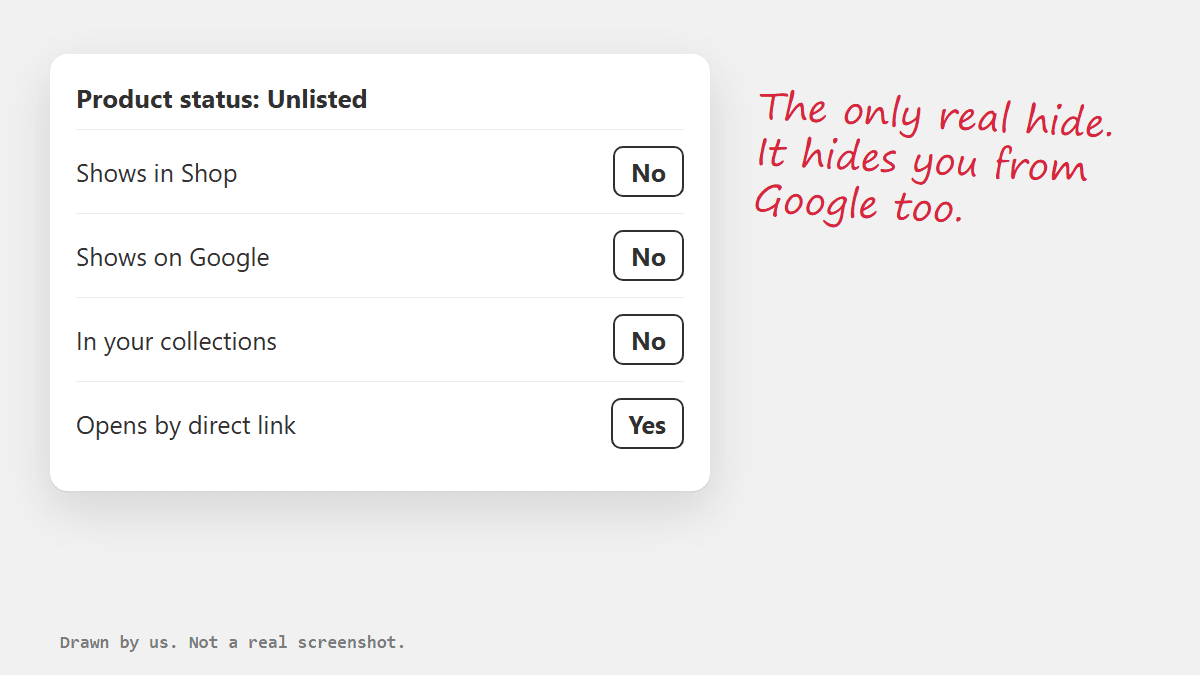
This is the only switch that makes a product vanish from Shop. Shopify gives you two ways to do it.
Unlisted status. You set this on the product itself. It hides the product from every part of Shop.
The seo.hidden metafield. A metafield is an extra data field on a product. This one hides the product from the Shop home feed and from Shop search. A person with the direct Shop link can still open it and add it to cart.
Now read the price tag, because it is a big one.
Both of these also pull the product out of internet search. Google included. An unlisted product can only be reached by its direct link. It drops out of your own collection pages, your store search and your product recommendations too.
That’s leaving a party by leaving the country.
So who is this for?
A wholesale-only item. A private product for one client. Something you sell only at your counter. It is a tool for a handful of products. Unlisting your whole catalog to escape one app would take your store off the map.
The trap: “we switched it off for the weekend”
This one costs real money, so it gets its own stop.
Say you run a market stall or a pop-up now and then. Stock is tight, so you pause online sales for the day. You assume Shop paused with it.
Stores have been burned here. Stock meant for the stall got bought online, through a Shop listing the owner thought was off.
Look at the switches again and you can see why. A listing in Shop is a door to your product page. If that page can still take an order, the door works.
What I’d do the day before:
- Take a phone that is not logged in to your store.
- Search your store name in Shop.
- Tap a product and try to buy it, all the way to the payment step.
If you get that far, so can a stranger. Fix it and wait ten minutes, then try again.
“Why do you have my card?”
A brand new customer reaches your checkout. Their card details are already filled in. Of course that scares them.
Here is what happened inside the platform.
Shop Pay is Shopify’s fast checkout. It saves a shopper’s email, card and address. That customer ticked the save box months ago, on some other Shopify store. Shop Pay knew their email when they typed it on yours.
You never held the card. Shopify says the details sit on its servers and reach your store only when an order is placed.
If a customer shouted at you over this, that was never yours to carry.
Here is a reply you can copy:
Hi, thanks for asking, and I understand the worry. We don’t store your card. You saved it with Shop Pay, Shopify’s checkout, when you bought from another store that uses it. Shop Pay knew your email and filled in the details for you. We only see them once you place an order. If you want to know more about how it keeps them, the Shop Help Center explains it.
Can you turn Shop Pay off? Yes. Some people will tell you the only way is to leave Shopify Payments. Shopify’s help page has a plain off switch:
- Go to Settings > Payments.
- In the Shopify Payments section, click Manage.
- Click More actions, then Manage payment methods.
- In the Shop section, deactivate Shop Pay.
Stop before you click, though. If you sell subscriptions that were started with Shop Pay, those payments will fail once it is off, and after a few failed tries the subscriptions get cancelled. Check that first.
My take: keep Shop Pay and keep that reply saved. Returning shoppers pay faster with it. Turn it off only if the angry emails outnumber the easy sales.
One more thing sits on that same help page. Stores that use Shop Pay and meet the rules get selling in Shop turned on by default. That is how you “joined” without doing anything.
“Stop pushing an app on my customers”
Your customer buys socks. The order page invites them to install Shop to track the parcel.
Nobody has ever said “I wish this sock order came with an app.”
Track with Shop is on by default for every Shopify store. Turning the link off takes a minute:
- Go to Settings > Checkout.
- In the Customer contact method section, deselect Show a link for customers to track their order with Shop.
- Click Save.
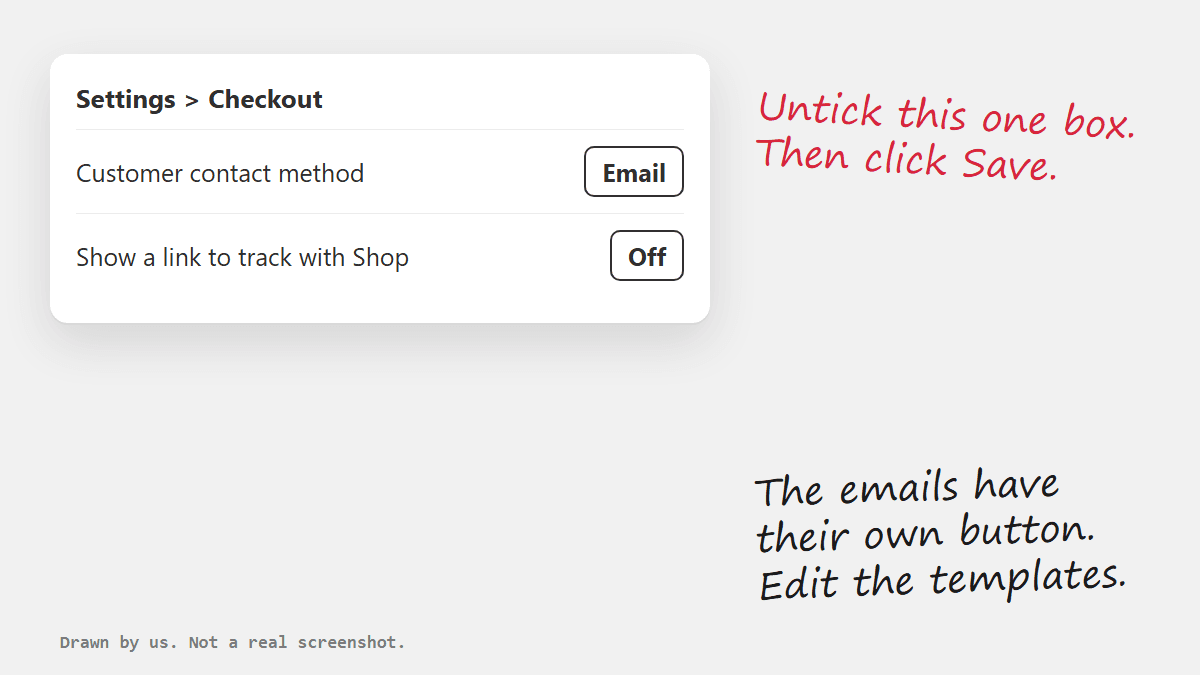
The same button also sits in your order confirmation and shipping confirmation emails, if you use Shopify’s default templates. You remove it there by editing those templates.
A fair warning so you don’t expect too much. A customer who already has the app can still track your parcel in it. You are removing the invitation, and the app carries on without you.
Should you even want out?
I’ll take a side.
For most stores, I’d stay listed and move the checkout to my own site. That is the second switch.
Why stay? Shop holds no stock and ships nothing, so the order and the customer are still yours. Most shoppers use the app to track parcels and to pay. Few of them browse it like a mall. And small stores that are buried on Google do pick up buyers there who would never have found them.
Why move the checkout? Because the person lands on your site and sees your brand, and from there the relationship is yours to build.
Now the other side, because it deserves respect. If you spent years teaching people to come straight to you, a listing you never asked for feels like someone moved your goods onto their shelf. Being annoyed that nobody asked you first is fair.
Both things hold. The listing is mostly harmless. You should still have been asked.
What happens next
The same Catalog that feeds Shop also feeds AI shopping. Think ChatGPT, Gemini and Microsoft Copilot finding products for people.
There you get more control. By default your store sits on a setting called Allow Shopify to manage for me. Turn that off and you can choose, channel by channel, who may read your products and who may sell them directly.
Does that setting change anything in Shop? No. Shopify says your AI choices have no effect on Shop.
Will Shop ever get a full off switch? I have no idea. Nothing on Shopify’s pages points that way today.
Your ten-minute Shop check
That store owner found all of this after signing a 3-year plan. The Catalog rules cover every store from the Starter plan up, so you don’t need a big plan to test these switches. Try them before you sign anything long.
Copy this and tick it off:
- Search your store in Shop on a logged-out phone.
- Pick one: sell in Shop, link to your store, or hide.
- Set your Sell with Shop method to match.
- Unlist only the products that must stay private. Remember Google goes too.
- Check for Shop Pay subscriptions before touching Shop Pay.
- Decide if you want the Track with Shop link.
- Open your AI channel settings and read the default.
- Run the phone test again after every change.
Eight boxes. People love boxes.
I’m writing this late, after my own long day. If you’re reading it at night with the admin open in another tab, do the phone search and set the second switch. Then close the tab. The rest keeps till morning.
And if you’d like a second pair of eyes on what your store has switched on by default, send it over and we’ll look.
Sources
- r/shopify merchant thread, 1 September 2026The thread that started this post.
- Setting up the Shop channel · Shopify Help CenterSetting up the Shop channel and the two selling methods.
- Managing products, categories, and collections on Shop · Shopify Help CenterPublishing, unpublishing and hiding products in Shop.
- Shopify Catalog · Shopify Help CenterWhat Shopify Catalog is and who reads it.
- Requirements for being included in Shopify Catalog · Shopify Help CenterWhich stores and products land in Shopify Catalog.
- Hiding a page from search engines · Shopify Help CenterWhat Unlisted status and the seo.hidden metafield hide.
- Shop Pay accelerated checkout for fast, secure payments · Shopify Help CenterWhat Shop Pay saves and what it switches on.
- Deactivating Shop Pay · Shopify Help CenterHow to turn Shop Pay off and what breaks when you do.
- Delivery tracking with Shop · Shopify Help CenterThe Track with Shop link and where to turn it off.
- Data sharing and privacy for selling with agentic storefronts · Shopify Help CenterWhich AI channels can read your products and how to choose.