Monday morning. Coffee in one hand. You open your Shopify admin to do the same thing you do every day, and nothing is where you left it. A job that took one click now takes four. Relax. Shopify didn’t remove your tools. It moved them, and a few daily jobs now take more clicks. This post walks you through where everything went.

You’re not slow. The buttons moved.
If you lost twenty minutes this week looking for things that used to be right there, that’s normal. Half of Shopify did the same thing, and a lot of them were louder about it than you.
How loud? A rant about the redesign pulled 166 comments on r/shopify in a few days. Under the anger there are real problems and a few real fixes. I checked every fix against Shopify’s own help pages. Where there is no fix yet, I’ll say so.
Let’s take the tour.
First stop“Is it just me?”
No.
Shopify started the switch on September 15. It is moving stores over a few at a time, and the new look shows up on its own. There is nothing to install and nothing to turn on.
That explains the mess online. One store owner is furious. The next one has no idea what anyone is talking about. Both are right. They are on different days of the same rollout.
Run two stores and you may get two different admins. Fun.
So if a guide’s screenshot looks nothing like your screen, check which admin you’re on before you blame the guide. Or yourself.
Second stopThe top bar moved out
Where did search go?
Left. Into the side menu.
Search, notifications and the store picker all packed their bags and left the top bar. They live in the side navigation now.
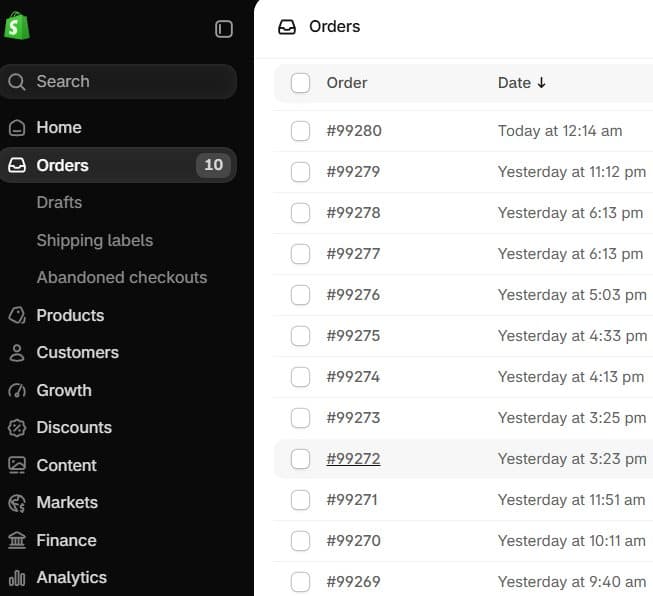
Want it faster than clicking? Press ? anywhere in the admin. A list of every keyboard shortcut pops up. People who live in search say Ctrl + K opens it. Look for it in that list.
Switching stores works the same way. Open the side menu and the store picker is in there. When you need more room for your work, collapse the menu. When you need it back, open it.
You may have noticed one more thing in that picture.
The side menu is dark now. The rest of the page is not.
Dark mode, but only for one third of the screen. Bold choice.
Can you turn it back to light? Not today. There is no setting for it yet.
Third stopInventory, now with extra steps
This is the change that slows teams down the most.
The old habit was lovely. Click the number, type -5, press enter. Done. Five gone.
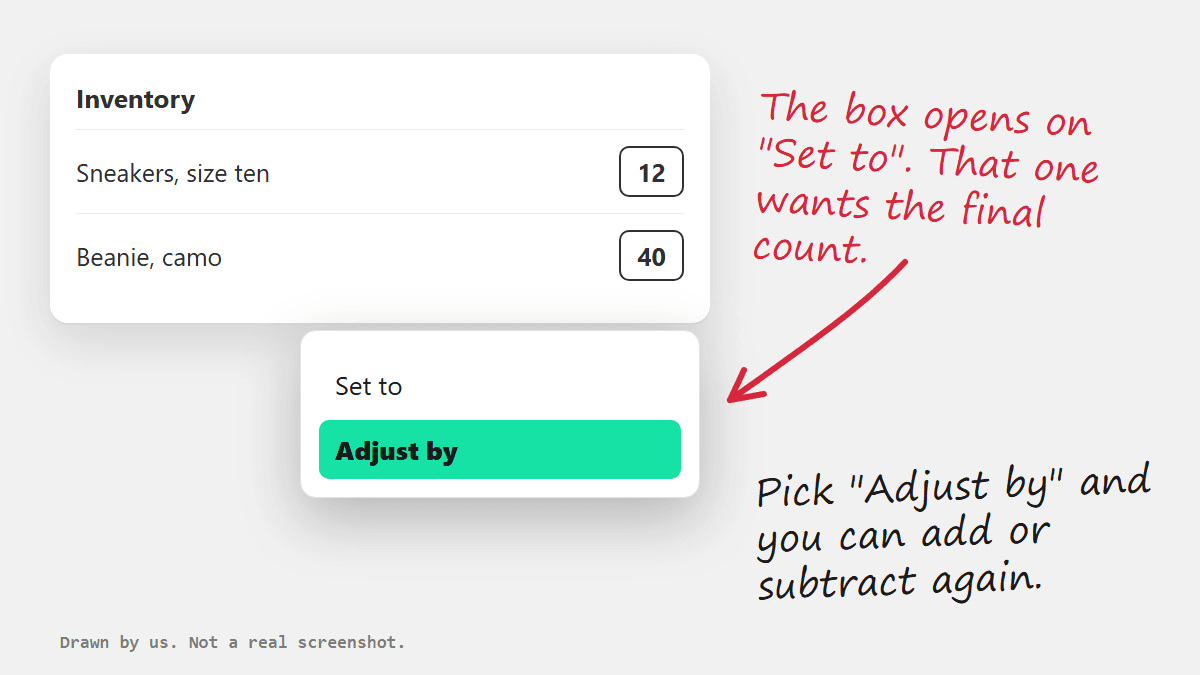
Now the box that opens is called Set to. It wants the final count.
Type -5 there and you just told Shopify you own minus five of something.
So what do you do? Depends on what you know.
You know the final count. Stay on Set to. Type the real number, click the check icon, then click Save. This is the quick one after a stock count.
You only know the change. Open the Set to menu and pick Adjust by. Now you can add or subtract like the good old days.
Here is the part that trips people up.
The check icon does not save. It only marks the change as pending. Nothing is stored until you click Save. Tell whoever handles your stock. It’s easy to walk away thinking the count went through.
There is one small gift in the new box. You can click Add reason and pick why the number changed. If two people touch your stock, use it. Three weeks from now, “why are we short on this” gets a real answer.
Fourth stopAll those variants
You used to tick every variant on a product and change the stock in one go.
Is that gone? No. It got a new door.
Open the product, tick the variants, click Open bulk editor. Or go to Products > Inventory, tick the rows and click Edit variants. Use Columns to add the fields you want.
Yes, it is more clicks. One nice thing came with them. Before it saves, it shows you every change you’re about to make. A slip of the finger is easier to catch.
And if your variant list looks short, it is just folded shut. Click the down arrow on that section and the rest appear.
Fifth stopThe small paper cuts
A few quick ones. Each is tiny. Together they are why your day feels slower.
Your sales number looks rounded. It is. Click the number on the home page and you get the full figure.
Fulfilled and unfulfilled orders look alike. People are squinting at the order list. No setting for it yet.
Fraud details on an order look shorter. Some stores see less than before. No fix yet.
Opening lots of items in new tabs is harder. No good answer yet, and I’m not going to invent one.
That is three “not yet” in a row. I would love to give you a trick for each. I’d rather tell you the truth and save you an hour of looking.
Sixth stopSidekick is sitting on your buttons
Sidekick used to live in a side panel. Now it floats at the bottom of every page, like this:
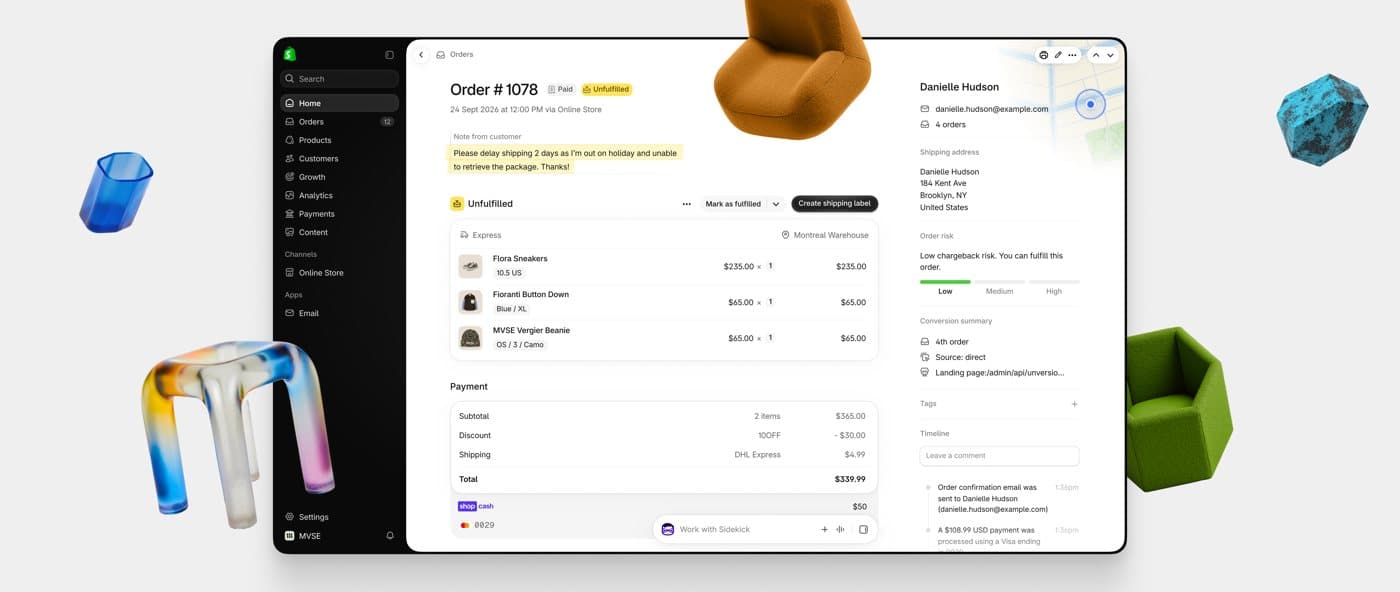
Looks harmless there. Now open a full-screen app that keeps its own buttons at the bottom.
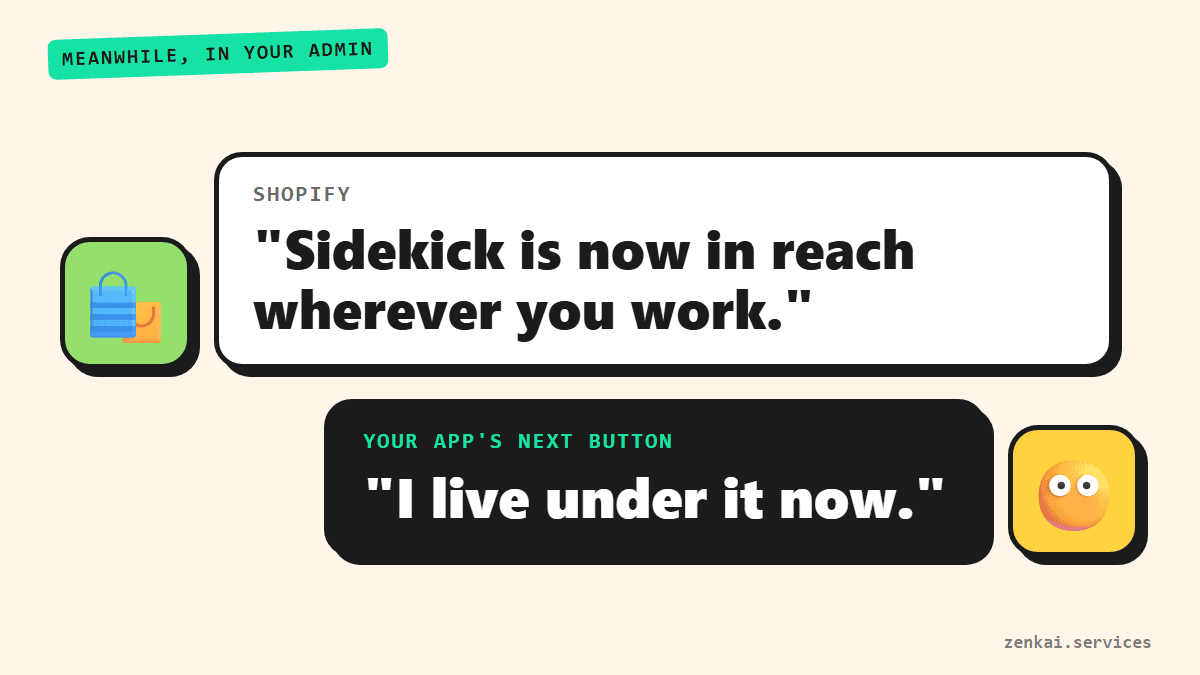
That is the real complaint. The chat bar lands right on top of the app’s own buttons. You can’t press next or previous without opening Sidekick first.
The fix going around is one line of CSS, added with a Chrome extension that lets you put your own styles on a page:
div[class^='_GlobalRibbonContainer'] { display: none }Does it work? Yes.
Should you put it on every staff laptop? Slow down. Here is what a developer sees in that line.
That name is Shopify’s internal label for the bar. It is no setting of yours. Shopify can rename it in any update, and your fix stops working with no warning.
It hides Sidekick fully in that browser. Anyone who uses Sidekick there loses it.
And it lives in one browser on one machine. New laptop or new hire, and the problem is back.
So treat it as a patch. Use it on the machines where an app is truly blocked, and write down that you did.
Then tell the people who can fix it for good. The app’s developer can move those buttons, and that fix reaches every store at once. Copy this:
Hi, since the new Shopify admin arrived, the Sidekick bar at the bottom of the page covers your app’s buttons on [page name]. I can’t click [button] without opening Sidekick first. Screenshot attached. Could you move the buttons or add some space at the bottom? Thanks.
Short, exact, with a picture. Developers fix that kind of report first. I know because I am one.
Seventh stopDid it move, or is it broken?
Some of what you’re seeing has nothing to do with a new layout. It is a bug.
Things people report that sound broken to me. An image that won’t delete until you click again and again. An item you add to an order that vanishes before you can save. The bar covering your newest listing so you can’t see it.
How do you tell the two apart?
If the thing works every time once you know the new path, it moved. If the same clicks work one time and fail the next, it’s broken.

For the broken ones, don’t suffer quietly. Send Shopify support three lines: what you clicked, what you expected, what happened. Add the browser you use.
None of this means you set your store up wrong. A bug in their admin is their job to fix, and they can only fix what gets reported clearly.
Eighth stop“Just run the store by chat”
The loudest advice online is to connect an AI assistant to your store and never open the admin again.
We went all the way back to typing commands at a computer. This one just says please.
Is it a good idea? For some jobs, yes.
For big, repeated work it is great. Changing a field on hundreds of products is a fine job to hand over. For two price changes on a quiet afternoon, opening a chat and explaining yourself is slower than clicking twice.
So don’t pick a team. Keep the clicks for small jobs and the chat for big ones. And check what it did before you trust it with stock or prices.
Why did Shopify do this?
You can skip the theories. Shopify said it in its own post: daily Sidekick sessions grew 4.8 times from 2025 to 2026. The admin is now built around that chat. Search and its neighbours left the top bar to make room for the new frame.
Did Shopify test this on real store owners first? People argue about it for pages. I have no idea, and neither does anyone arguing. Shopify hasn’t said what it measured.
What I can see is the trade. The new admin is easier for someone who asks Sidekick to do things. It is slower for someone who has the old clicks in their fingers. If you pack orders every morning and add products every afternoon, you are the second person.
Is the old layout coming back? I don’t think so.
Last stopWhat I’d do this week
It can be fine. It takes one afternoon.
- Write down the five jobs you do most in the admin.
- Do each one once in the new admin, slowly, and note the new path.
- Put those paths on one page for your team. Three lines per job: the job, the old way, the new way.
- Do this before BFCM, on a quiet day. Learning a new layout during your biggest week is a bad plan.
- Send Shopify the exact clicks you lost. “I hate it” gets skipped. “Lowering stock by one now takes four clicks” is a bug report.
Here is what one entry on that page looks like:
- Job
- Lower stock after selling one in person.
- Old way
- Click the number, type the change.
- New way
- Click the number, open the Set to menu, pick Adjust by, type the change, check icon, Save.
Print the page. Tape it next to the packing table. It looks silly for about four days, and then nobody needs it.
You can’t roll the admin back. You can make your five daily jobs fast again in one afternoon.
My dad is sixty and still runs a business that wears him out every day. Nobody asks people like him before the tools change either. The work just has to keep going.
So go easy on yourself and your team this week. Being annoyed at a button is allowed.
And if one of those jobs is now slow for good, it can become a small custom tool inside your own admin. We build those.
Sources
- r/shopify merchant thread, 30 September 2026The thread that started this post.
- A new look for the Shopify admin · Shopify ChangelogShopify’s own note on what changed and how the rollout works.
- The Shopify admin, redesigned (2026) · ShopifyShopify’s reasons for the redesign.
- Adjusting inventory quantities · Shopify Help CenterThe two ways to change stock: Set to and Adjust by.
- Adjusting inventory quantities in bulk · Shopify Help CenterChanging stock for many variants at once.
- Keyboard shortcuts · Shopify Help CenterHow to see every keyboard shortcut in the admin.