A PDF is the easiest thing in the world to share. One buyer drops your ebook into a group chat, someone posts it on a forum, and a month later the planner you spent weeks on is going round for free.
You can’t stop a file from being forwarded. What you can do is make every copy point back to the order it came from. People think twice about sharing a file with their own email address printed across every page.
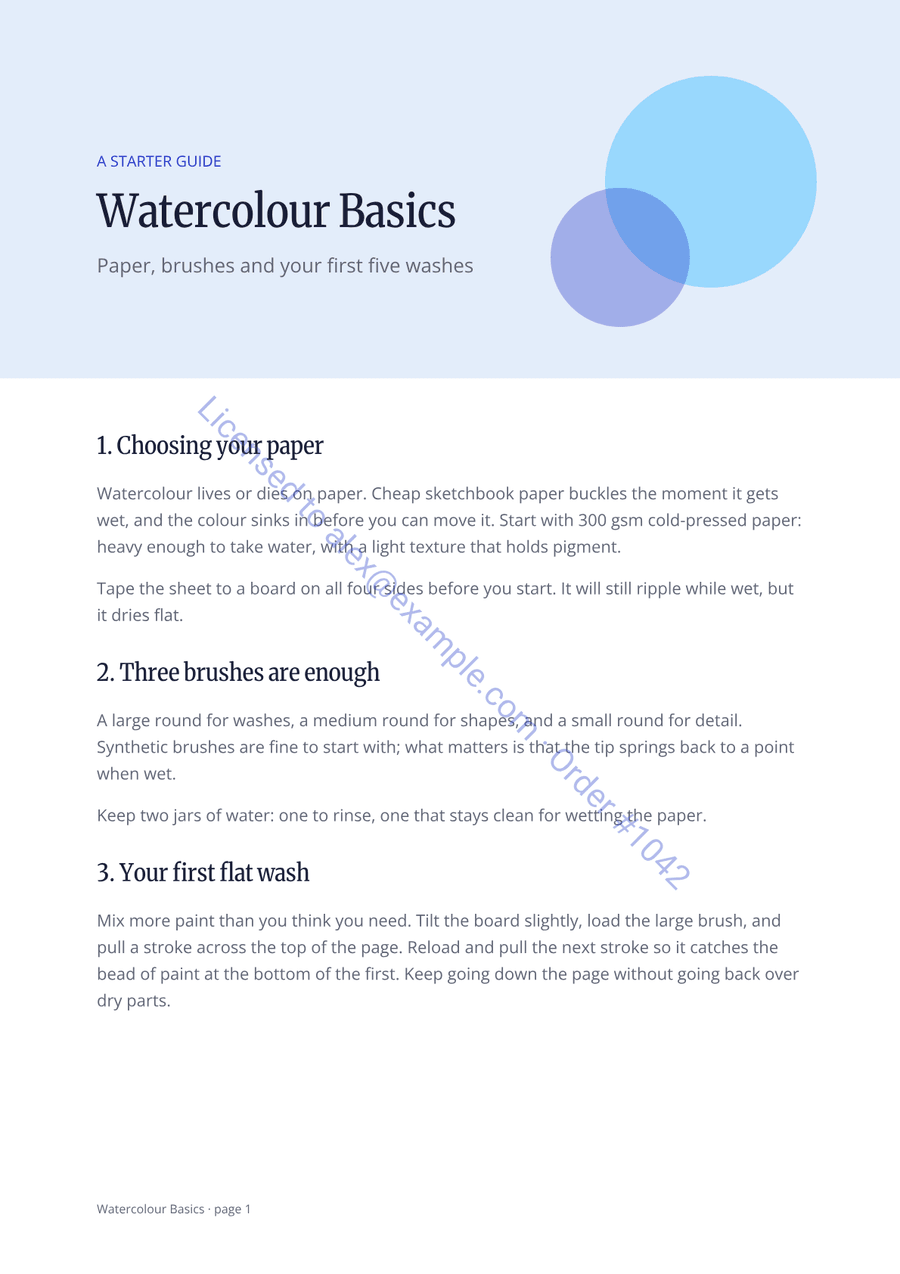
That is what PDF Stamping in Flash Digital Downloads does. When a buyer downloads a PDF, the app writes a watermark onto its pages with that order’s details: the email it was bought with, the order number, the date. Every buyer gets their own copy, and every copy says whose it is.
Set it up
- In Flash Digital Downloads, open Settings and the PDF Stamping tab.
- Tick Enable Watermark feature.
- Write the Watermark Text. Click Variables to see what you can put in it (more on that below).
- Pick a Watermark Position: Top, Bottom, Left, Right, Center, or Custom. With Custom you drag a red dot to the exact spot.
- Choose the Font, the Watermark Color with its transparency, the Font Size and the Rotation.
- Click Save. Orders from then on get stamped PDFs.
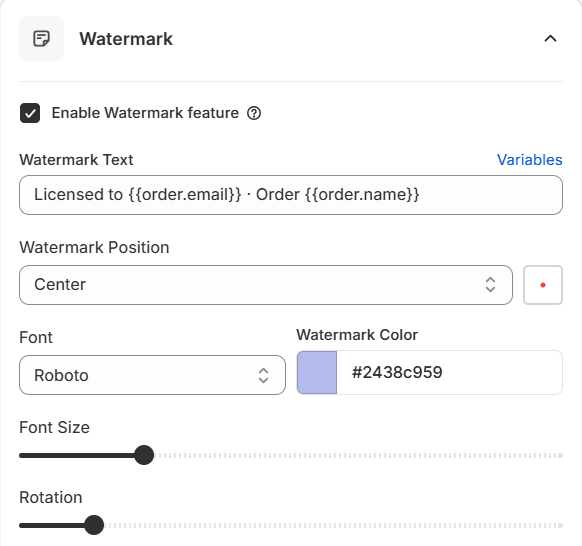
A light colour at 20 to 35% works best. Strong enough to notice, faint enough that nobody has to read the guide through it.
What goes in the stamp
The watermark text can be anything, and three variables fill in from the order when the file is downloaded:
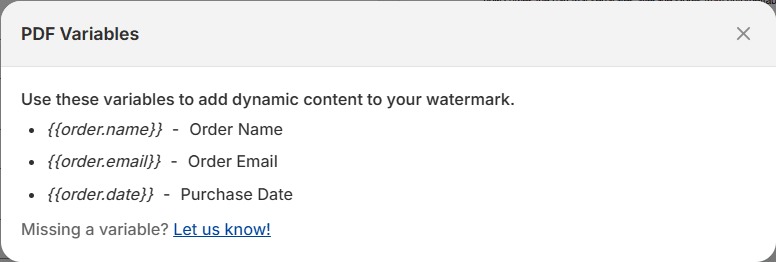
{{order.email}}, the email the order was placed with. This is the one that makes people think before sharing.{{order.name}}, the order number as Shopify shows it, like #1042. Handy when a copy turns up somewhere and you want to find the order.{{order.date}}, the purchase date, written out like November 23, 2026.
Mix them with your own words: “Licensed to {{order.email}} · Order {{order.name}}”, or “Purchased by {{order.email}} on {{order.date}}. Personal use only.”
Which files and pages
Under the style settings, two choices decide where the stamp goes.
- How should the range apply? All files, Select specific files, or Select files from a specific product. Stamp your paid course workbook and leave the free sample alone.
- Page Range. All pages or Specific pages, such as only the first five. A stamp on the cover and a few inside pages is often enough, and the rest of a printable stays clean.
What the buyer gets
Nothing changes for the buyer until they open the file. The download email and the download page look the same; the PDF they get is stamped with their own order.
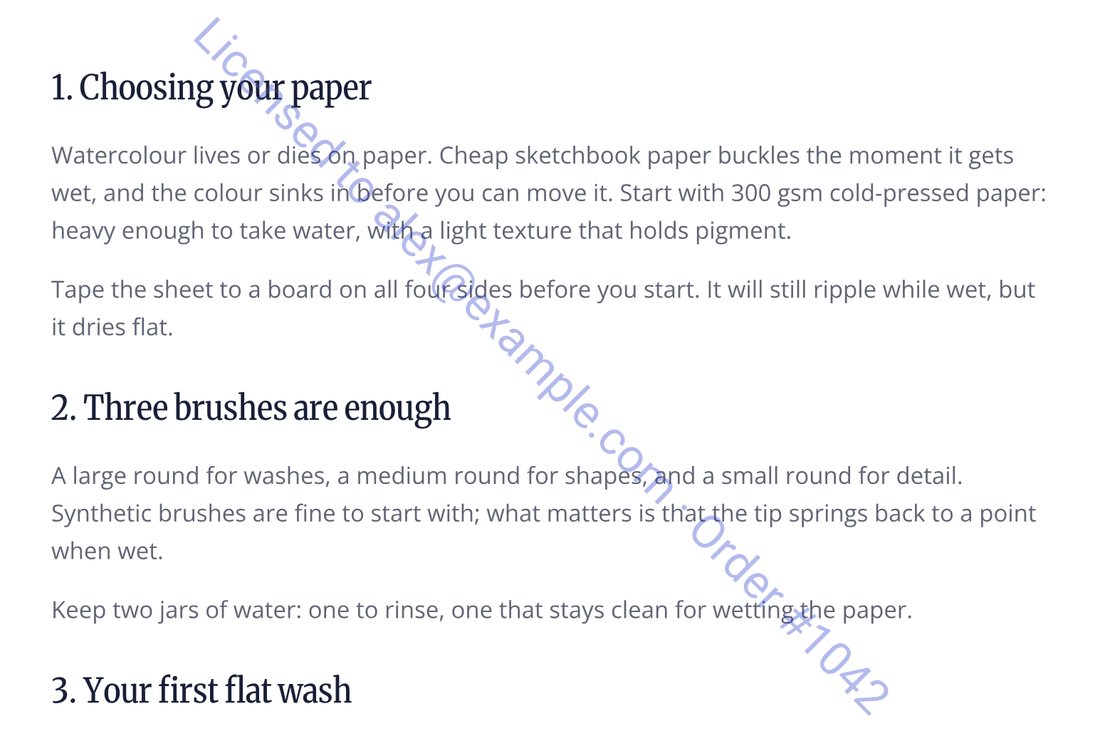
The stamp is written into the page itself, not laid on as a comment, so it prints with the page and there is no layer to switch off in a PDF reader.
Password and permissions
The same tab has two more ways to keep a PDF in the hands of the person who paid for it.
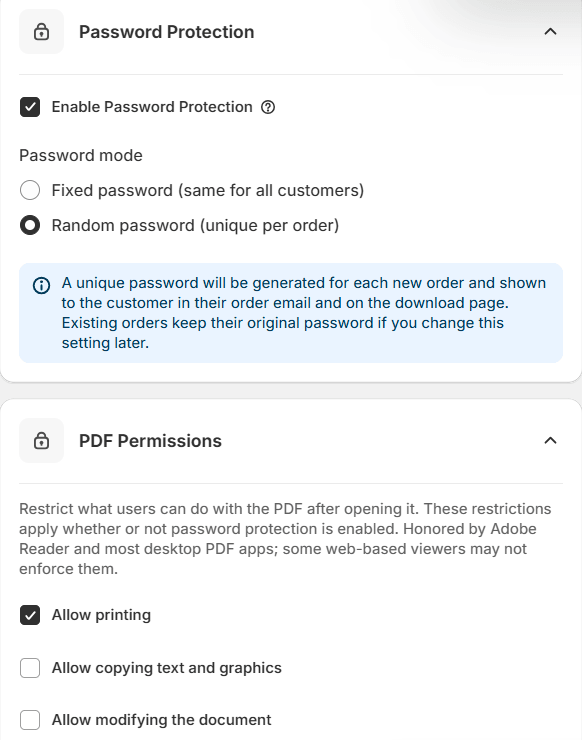
- Password Protection. A Fixed password is the same for every buyer. A Random password is made for each new order and shown to the buyer in their order email and on the download page, so a forwarded file is useless without the password that came with it. Orders keep the password they were given if you change this later.
- PDF Permissions. Allow or block printing, copying text and graphics, changing the document, and adding comments. These work with or without a password. Adobe Reader and most desktop PDF apps respect them; some web viewers don’t.
Things to know
- It is a deterrent, not a lock. Someone set on copying your work can still take screenshots. The stamp makes sure every copy that goes round has a name on it, which stops most people before they start.
- Only PDFs are stamped. Videos, images and links are delivered as they are, and so is a PDF packed inside a ZIP you uploaded. To stamp it, upload the PDF on its own.
- Each copy is stamped when it is downloaded, with that order’s details. You upload the file once; nothing has to be prepared per buyer.
- Starter, Plus and Enterprise plans include PDF Stamping. On the Free plan the settings are shown locked with an upgrade button.
PDF Stamping is in Flash Digital Downloads under Settings > PDF Stamping. Turn it on before your next launch, and every copy that leaves your store carries its owner’s name.