Adding a download link to one product takes a minute: open the product, click Create file from link, paste, save. Doing it for two hundred products takes an afternoon, and somewhere around product 140 the wrong link ends up on the wrong product.
Flash Digital Downloads now has a Bulk import. You fill in one spreadsheet with a Product ID and a link on each row, upload it, check what it is about to do, and save. Every link lands on its product in one go.
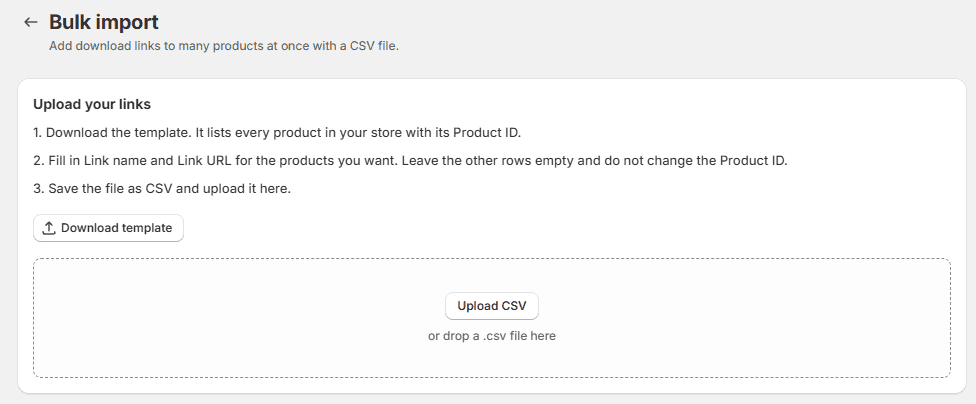
The template
A Product ID is the number Shopify gives each product. You never have to look one up: the template already has a row for every product in your store, with its ID and title filled in. It has four columns.
- Product ID. Leave it as it is. The template writes it as
gid://shopify/Product/…, which Excel leaves alone. A plain number works too if you type a row by hand. - Product title. Only there so you can find your way around the sheet. The import ignores it.
- Link name. What the customer sees. Leave it empty and the link shows its site’s name, like drive.google.com.
- Link URL. Any link that starts with http:// or https://: Google Drive, Dropbox, Notion, YouTube, your own site.
Rows are matched by Product ID only. A title can have a typo or a twin; an ID can’t. For several links on one product, add one row per link with the same Product ID. Rows you leave without a link are skipped, so a template of 5,000 products with 30 links filled in is a 30-row import.
Set it up
- In Flash Digital Downloads, open Digital Products and click Bulk import.
- Click Download template.
- Fill in Link name and Link URL for the products you want.
- Save the sheet as CSV (in Google Sheets: File > Download > Comma Separated Values (.csv)) and click Upload CSV, or drop the file on the box.
- Check the rows, then click Save products. Keep the page open until it says Import finished.
Excel in some languages saves CSV with semicolons instead of commas. That works too.
Check before saving
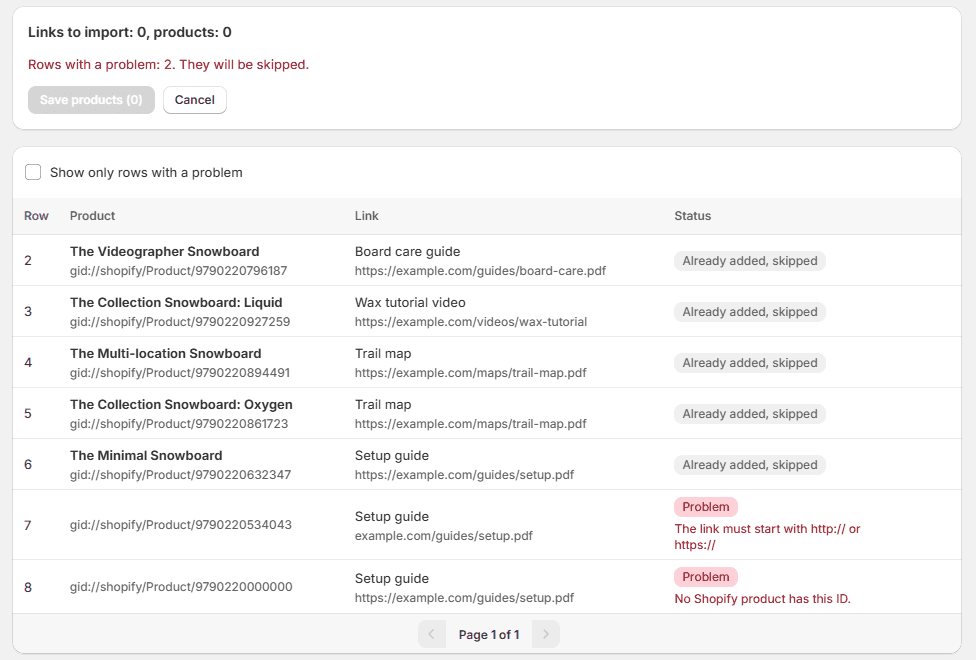
Uploading saves nothing. First every row gets a status, next to the product’s real title from Shopify, so a wrong ID shows up as the wrong product before it costs you anything.
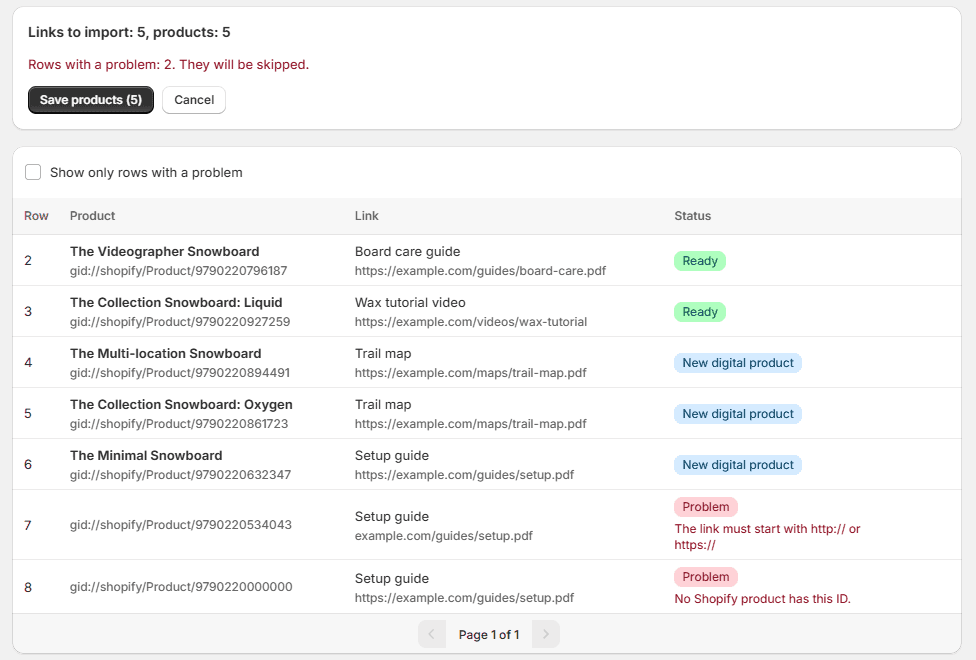
- Ready: the product already has files in the app. The link is added to them.
- New digital product: the Shopify product had nothing in the app yet. The import sets it up, the same as Create digital product would.
- Problem, with the reason: a link without https://, an ID no product has, an ID Excel shortened to something like 8.12346E+12. Problem rows are skipped and the rest still import.
After the import
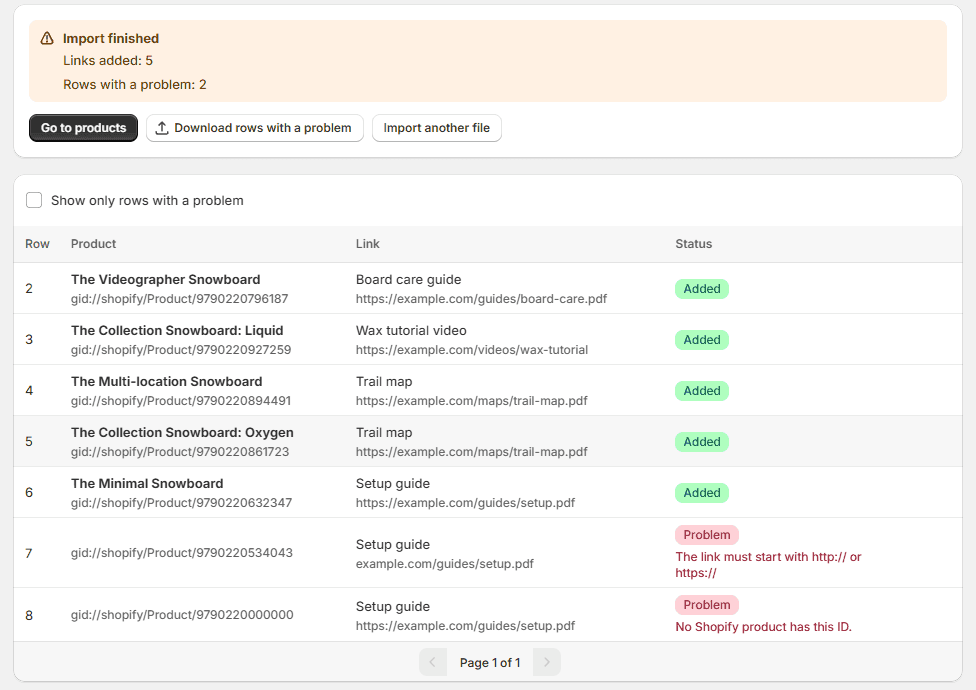
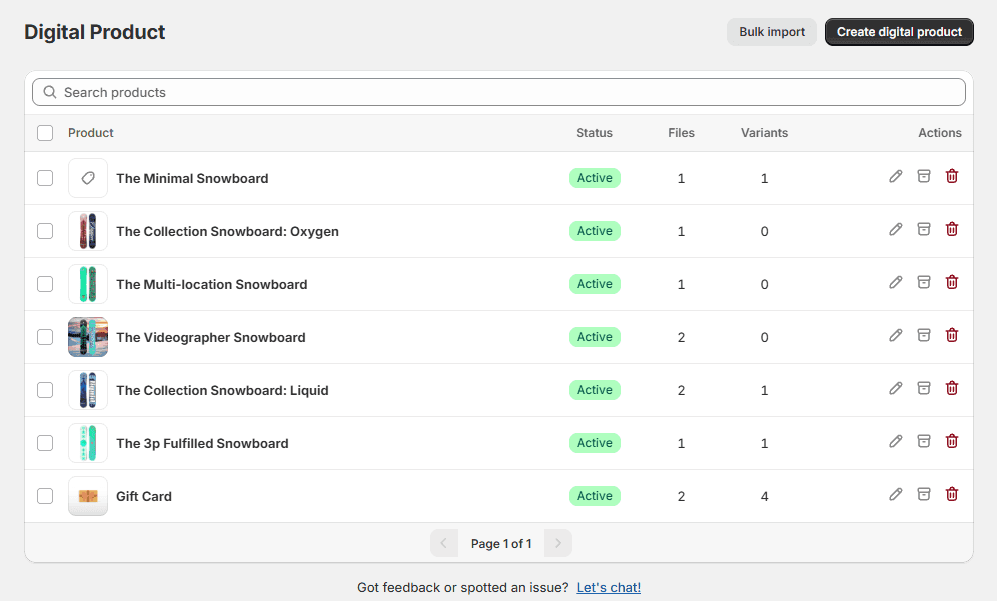
The new products show up on Digital Products straight away, and the links sit on each product exactly like a link you added by hand. When someone buys the product, the link goes out in the delivery email with everything else.
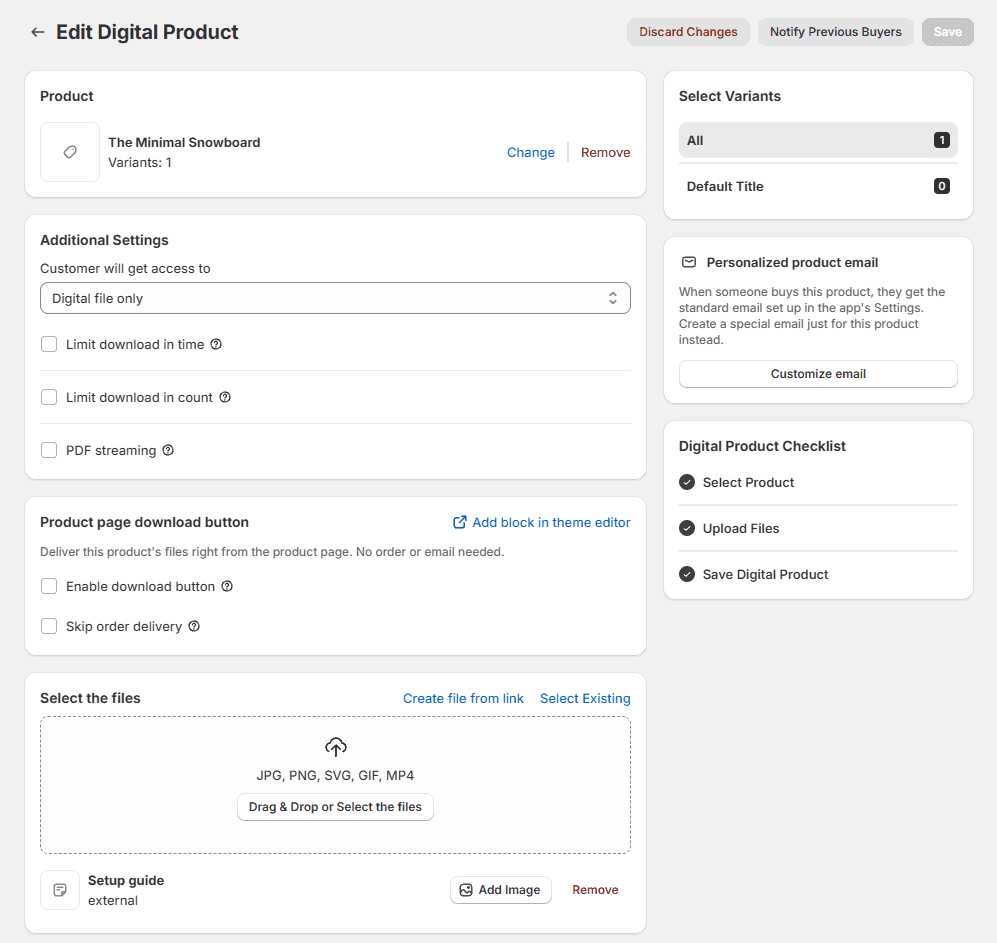
Uploading the same file twice is safe. A link that is already on the product is skipped, not added again. That also covers the tab you closed halfway: whatever was saved stays saved, and the same file finishes the rest.
Things to know
- Links, not files. Files you upload to the app, like PDFs and ZIPs, still go up on the product page.
- The product has to exist in Shopify. The import gives products their links; it does not create Shopify products. Shopify’s own import in Products > Import does that part.
- Every variant gets the link. A variant is one version of a product, like a size or a format. To give one variant its own link, use the product page.
- It only adds. It doesn’t remove or replace links a product already has.
- On the free plan, 3 digital products can be active. New products past that are saved as archived: the links are on them, but they don’t deliver until you upgrade and activate them. Paid plans have no limit.
- Products that deliver only license keys are skipped. Products that deliver files and keys take links like any other.
- Per file: up to 5 MB, 2,000 links, and 20 new links per product. Excel files (.xlsx) need saving as CSV first.
Bulk import is live on every plan of Flash Digital Downloads. Two hundred products is now one spreadsheet and one click.