You know which product goes with which. Someone buys the board, offer the wax. Someone buys two of anything, offer the bag. Someone from the UK, offer the thing that actually ships there.
The old upsell section in Flash Cart Drawer Upsell didn’t know any of that. You picked a few products, and every cart saw the same few products. Fine for a store with one hero product. Useless for everyone else.
So I rebuilt it around rules. This post shows what a rule is, how to set one up, and the bits that still have rough edges.
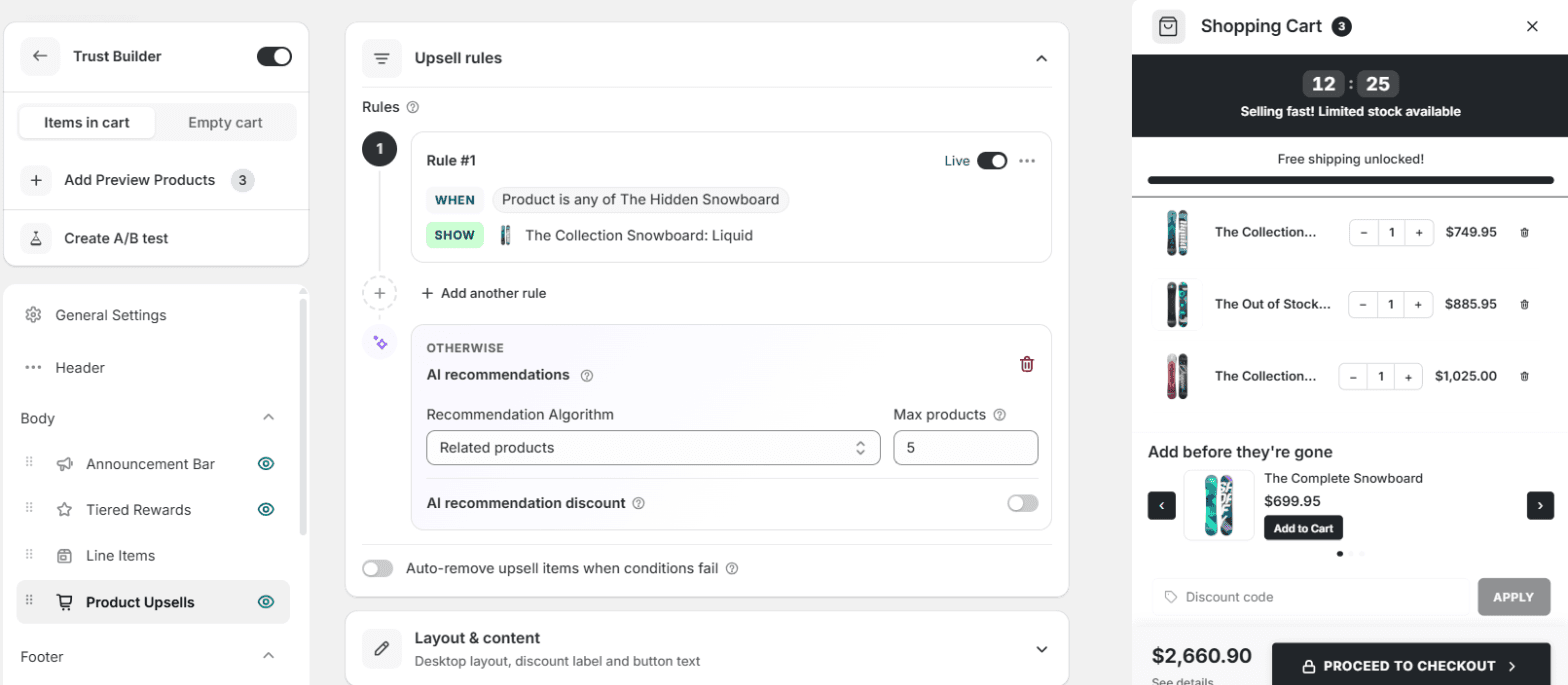
What a rule is
A rule has two halves.
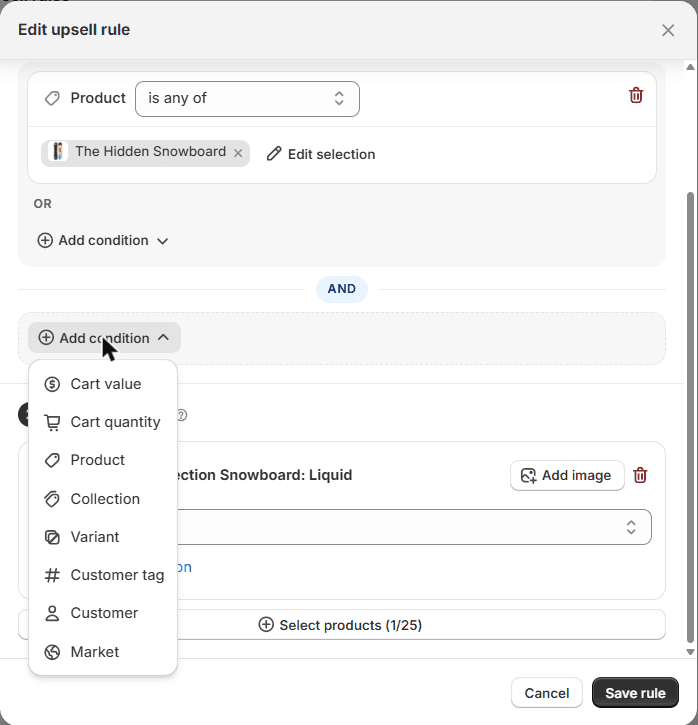
When. The conditions a cart has to meet. Cart value, cart quantity, a product, a collection, a variant, a customer tag, whether the customer is logged in, or the market they are shopping from. Leave the conditions empty and the rule matches every cart.
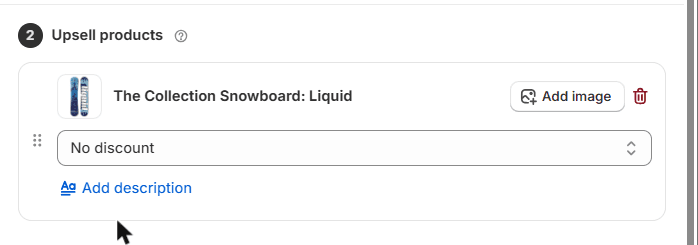
Show. The products to offer when it matches, in the order you want them. Up to 25 per rule. Each one can carry its own discount, its own image, and a short line of text.
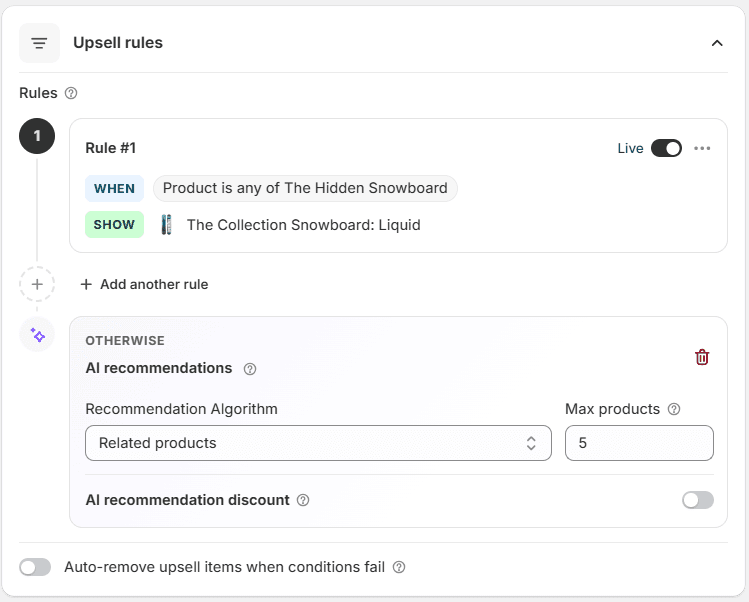
Rules sit in a list and are checked from the top. The first match is what the shopper sees, so put the specific rules above the broad ones. Drag to reorder. Each rule has a Live switch, so you can pause one without deleting it.
Under the list there is an Otherwise step. That is what shows when no rule matches: by default, products picked by Shopify’s own recommendation engine, based on what is in the cart. You can choose related or complementary products, cap how many show, and put a discount on them too. Or remove it, and carts with no matching rule see no upsell at all.
Setting one up
- Open the app and click Cart Editor, then open your cart.
- In the left list, under Body, click Product Upsells.
- Click Create your first rule, or Add another rule if you already have one.
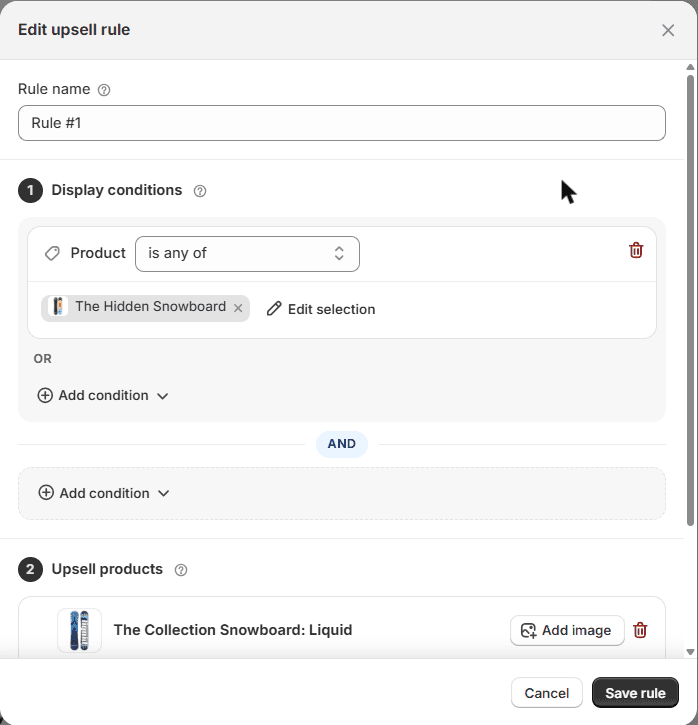
- Give it a name. Shoppers never see it, so call it what it does.
- Under Display conditions, click Add condition and pick a type. Conditions inside one box are OR: any one of them can match. Boxes are joined with AND: every box has to match.
- Under Upsell products, click Select products and pick what to offer. Set a discount on each product if you want one.
- Click Save rule, then Save at the top of the editor.
One more switch, below the list: Auto-remove upsell items when conditions fail. Turn it on and a product that was added through a rule leaves the cart when that rule stops matching. Useful when the offer only makes sense next to the thing it was offered with. Off by default, because taking things out of a cart without asking is the kind of thing you should opt into.
What the shopper sees
Nothing new, and that is the point. The upsell section looks the way it always did. A heading, a small carousel of products, an add-to-cart button on each. What changed is which products land in it.
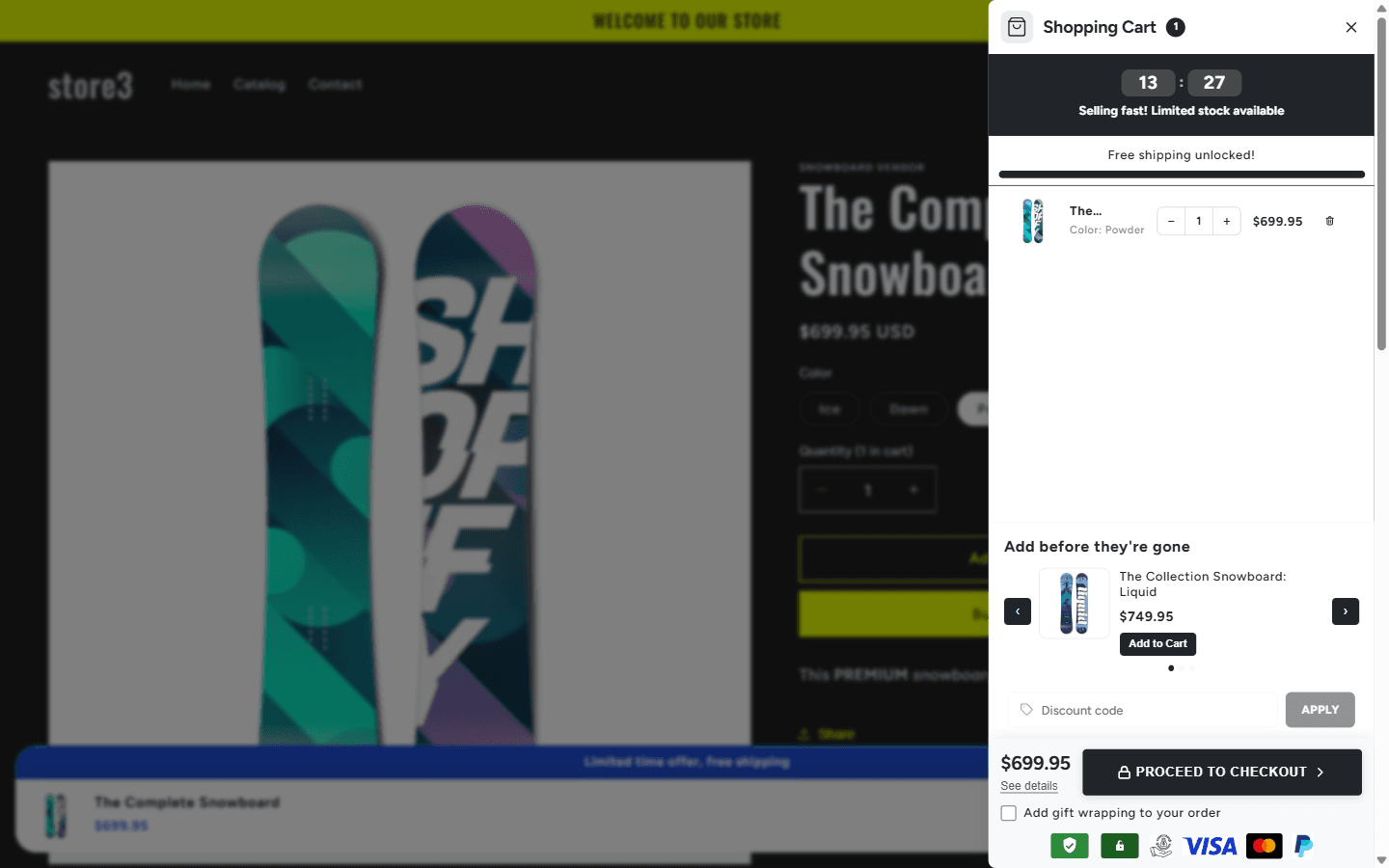
When a product in a rule has a discount, the saving can show as a label next to its price in the drawer. The discount itself is applied at checkout, and only to items that came in through the upsell. Add the same product from its own page and it costs full price.
The section’s heading, button text, desktop layout and colours are set in the two cards under the rules, Layout & content and Styling. They apply to every rule. There is no per-rule layout.
Rough edges
Things it does not do yet, so you don’t go looking.
- No dates. A rule is live or paused. If you want a weekend-only offer, you flip the switch yourself.
- Customer conditions need a login. Customer tags and customer emails are read from the logged-in account. A guest matches neither, even if you know who they are.
- One layout for mobile. The side-by-side and grid layouts are desktop only. Phones always get the default carousel.
- 25 products per rule, 10 for the AI fallback. Enough for anyone I have talked to, but a limit all the same.
- Rules do not stack. The first match wins and the rest are ignored. If you want two offers in one cart, put both products in the same rule.
If you had products picked in the old upsell section, they are still there. They became a single rule, with your old display conditions carried over if you had any. It behaves the same as before. Edit it or leave it alone.
The rules are live now for every store on Flash Cart Drawer Upsell. If a condition you need is missing, tell me which one.