The last thing a shopper reads before they pay is the checkout button. On most stores it says “Proceed to checkout”, and the number that matters sits a line above it, in smaller type, next to a struck-through price and a discount line. A shopper who is about to commit has to look in two places to know what they are committing to.
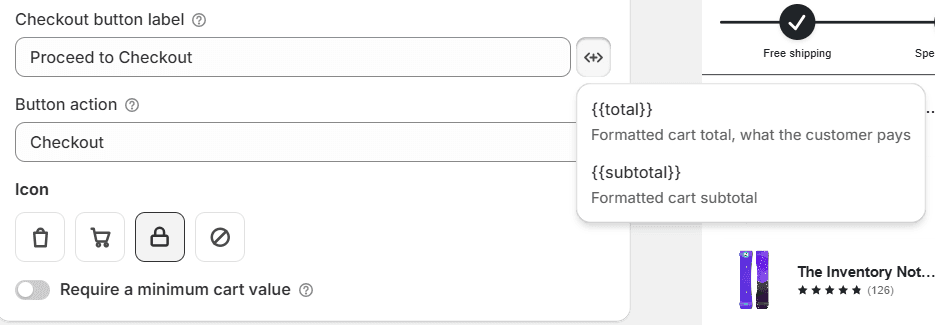
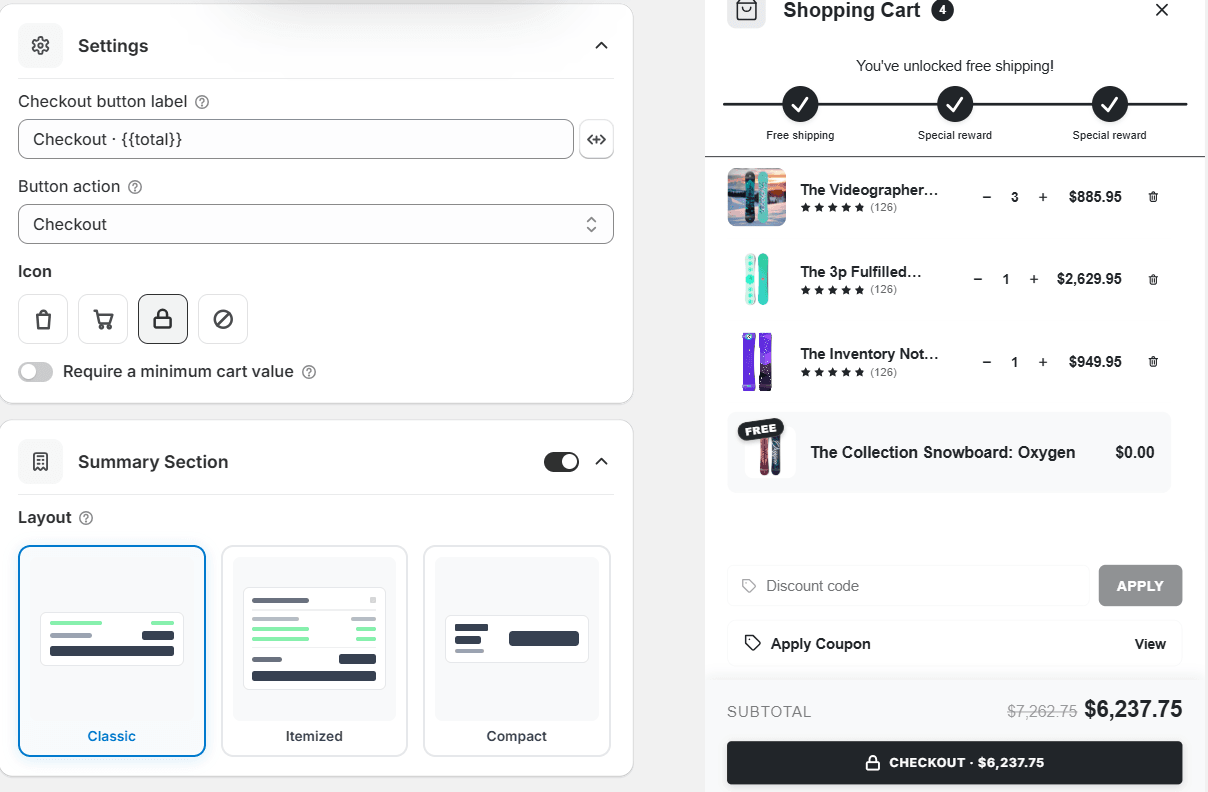
Flash Cart Drawer Upsell can put that number on the button itself. Write {{total}} in the button label and the cart drawer fills it with the cart total, in your store’s own money format, and keeps it up to date as the cart changes.
Two values: total and subtotal
The label takes two placeholders. Each is replaced with a formatted price.
- {{total}} is what the shopper pays: the cart after automatic discounts and free gifts.
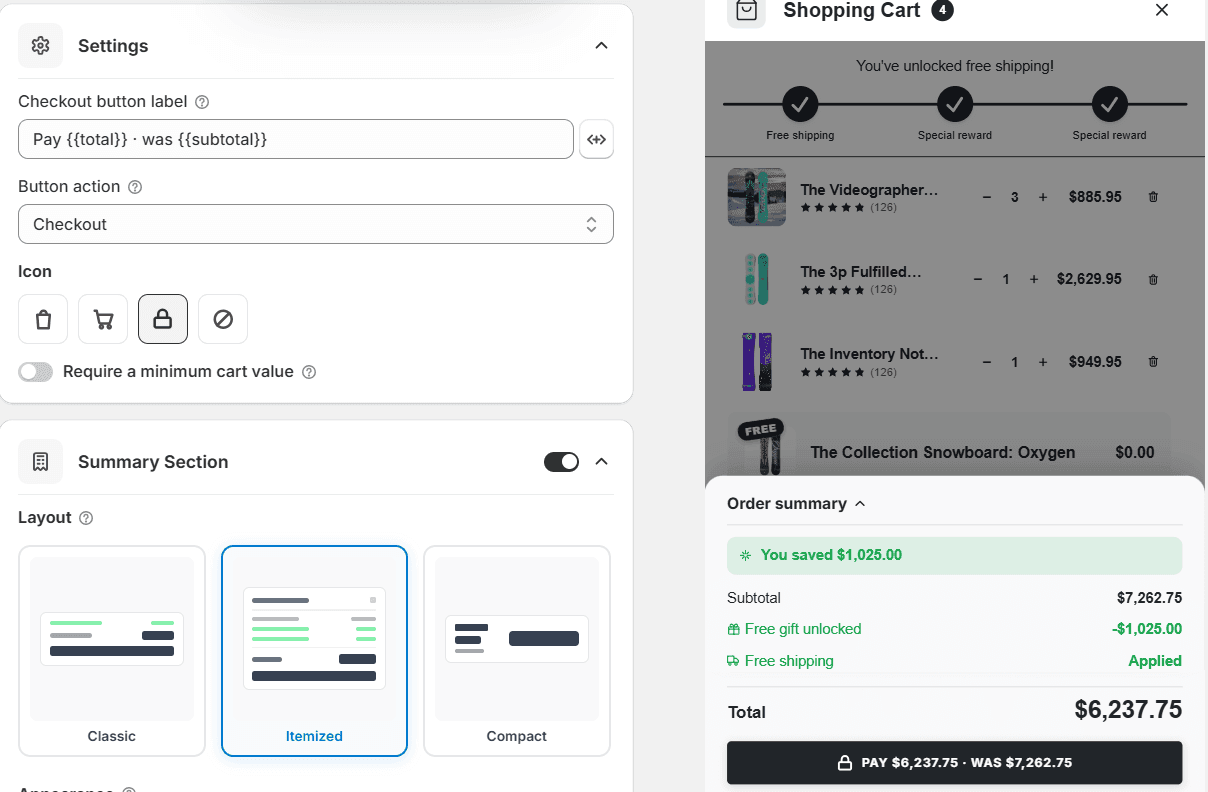
- {{subtotal}} is the figure on the Subtotal line just above the button, in whichever summary layout the cart uses. In the itemized layout that is the price before savings, so it is the number to pair with the total when you want the saving to show.
Everything else in the label stays exactly as you type it. A label without a placeholder still works as it always did.
Set it up
- In Flash Cart Drawer Upsell, open your cart in the cart editor. Under Footer, click Checkout button.
- In Checkout button label, write the label you want. Click the button beside the field to drop in {{total}} or {{subtotal}}, or type them yourself.
- Watch the preview on the right; the button updates as you type. Then click Save.
What shoppers see
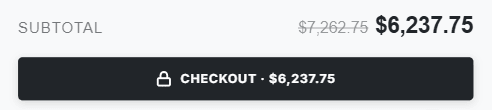
The button reads like a receipt: the action and the amount in one place. Change a quantity, take an upsell or unlock a free gift, and the price on the button moves with the rest of the cart.
Both values together tell the saving without another line of copy. With the itemized summary, “Pay {{total}} · was {{subtotal}}” shows what the cart costs now and what it cost before the free gift came off.
Good to know
- Short labels read best. The button is one line on a phone. “Checkout · {{total}}” or “Pay {{total}}” fits; a sentence will not.
- Translations keep the placeholders. On the app’s Translations page you can write the label per language and use the same placeholders in each.
- A/B tests can compare labels. Give variant B a label with the total and keep the plain one on A, and the test tells you which one sells more.
- Only these two values. The button does not take an item count or the amount saved. For the saving, pair {{total}} with {{subtotal}} as above.
The total on the checkout button is in Flash Cart Drawer Upsell now. Put the number on the button, and let shoppers see what they are paying before they press it.