“Buy 3, save 15%” is the easiest way to sell more of something people already like. On Shopify it is oddly hard to show. You can make an automatic discount for it, but the product page knows nothing about it: the quantity box is just a number, and the shopper finds out about the deal at checkout, if they find out at all.
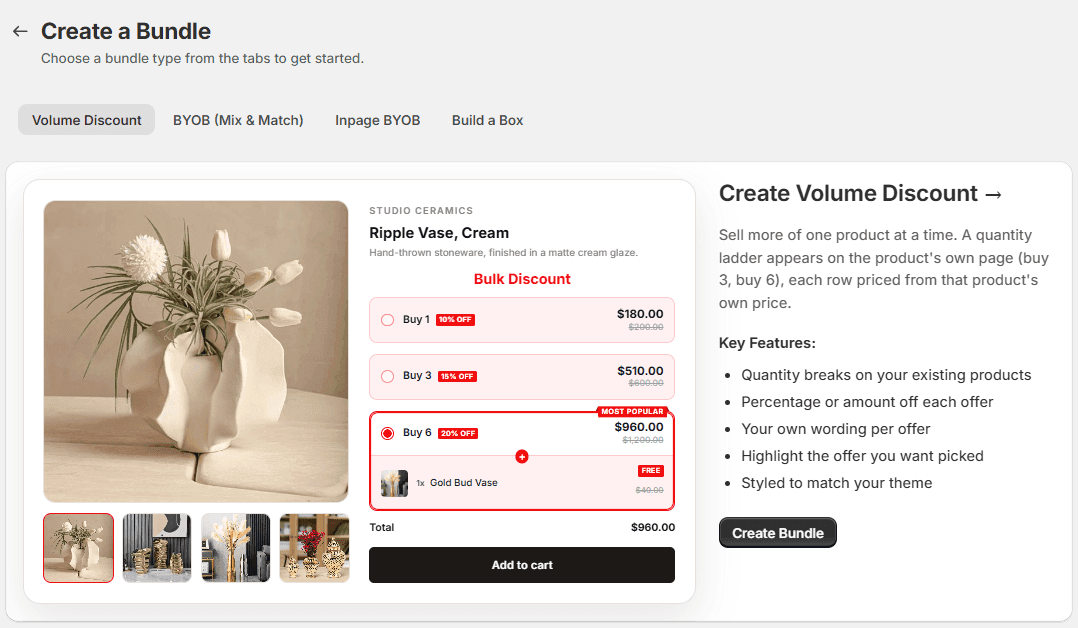
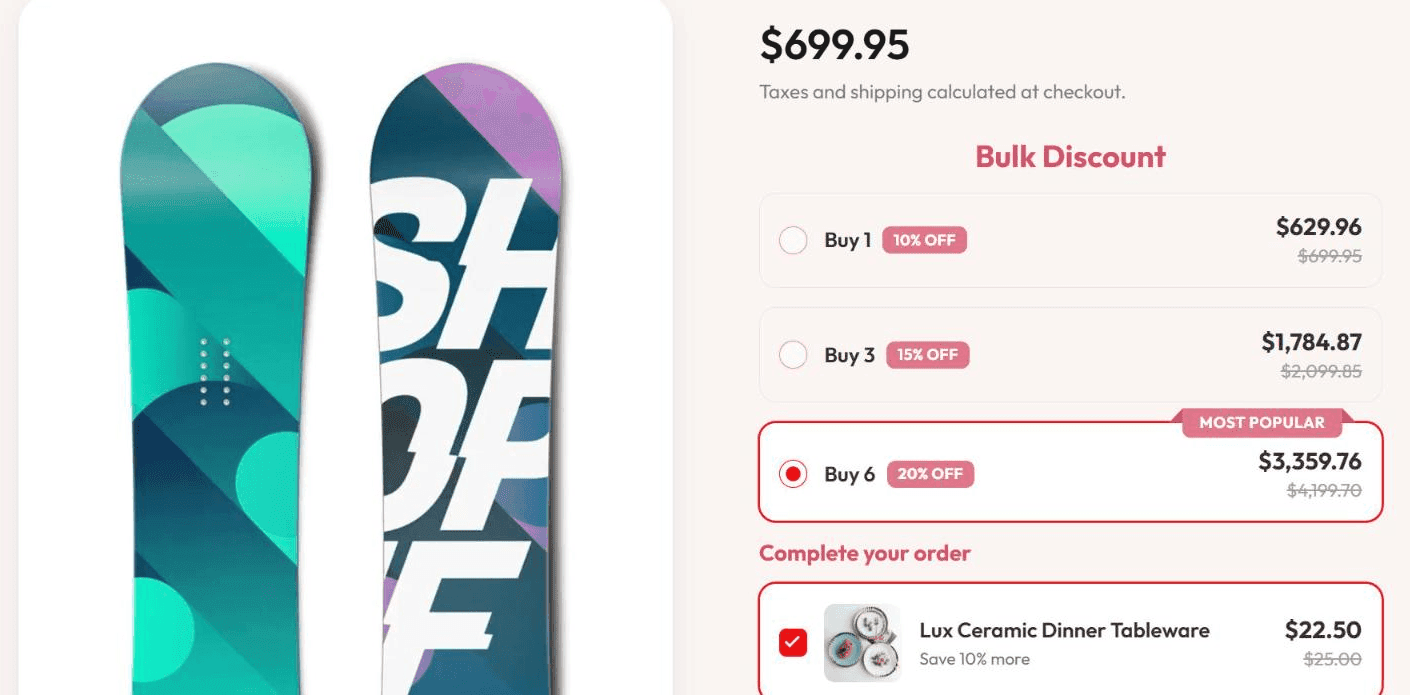
A volume discount in Flash Box Builder puts the deal where the decision is made. It draws a small ladder on the product page, Buy 1, Buy 3, Buy 6, each row priced from that product’s own price, and the price on the row is the price at checkout. This post walks through setting one up from scratch, and what it does not do yet.
Create the offer
- Open Flash Box Builder, go to Bundles and click Create New Bundle.
- Stay on the Volume Discount tab and click Create Bundle. The editor opens with a three-row ladder already filled in, so you start from something that works rather than a blank form.
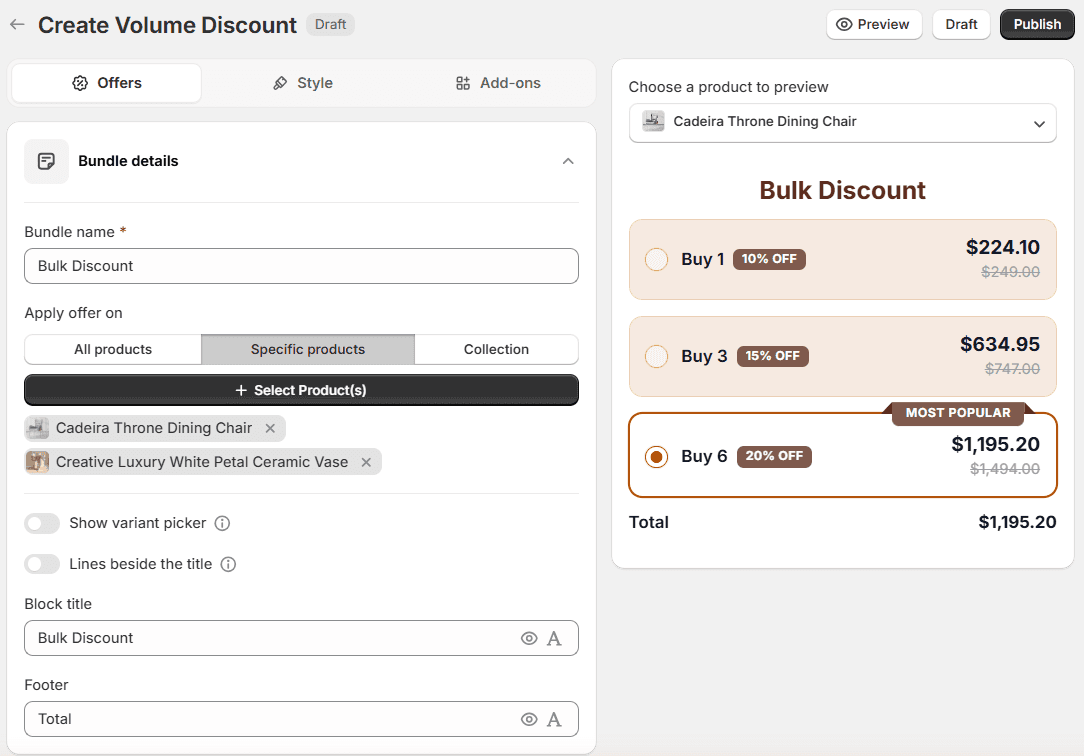
- Under Bundle details, give it a Bundle name. It is how you find the offer in your list of bundles.
- Under Apply offer on, pick where it runs: All products, Specific products or a Collection. For the last two, click Select Product(s) or Select Collection(s) and choose them in Shopify’s picker.
- Set the Block title, the heading shoppers read above the ladder, and the Footer word in front of the total. The eye icon hides either one.
Set the quantity breaks
Under Offers, each row of the ladder is one offer. Click one to open it.
- Offer title and Quantity: what the row says, like “Buy 6”, and how many the shopper is buying.
- Discount type: Percentage off, a Flat amount off, or a Fixed price for the whole row, like six for $100. Then the Discount value.
- Discount label: the small badge beside the title, like “20% OFF”.
- Most popular label: fill it in on one row and that row gets a ribbon. The block also opens with that row already picked, which is the nudge you want.
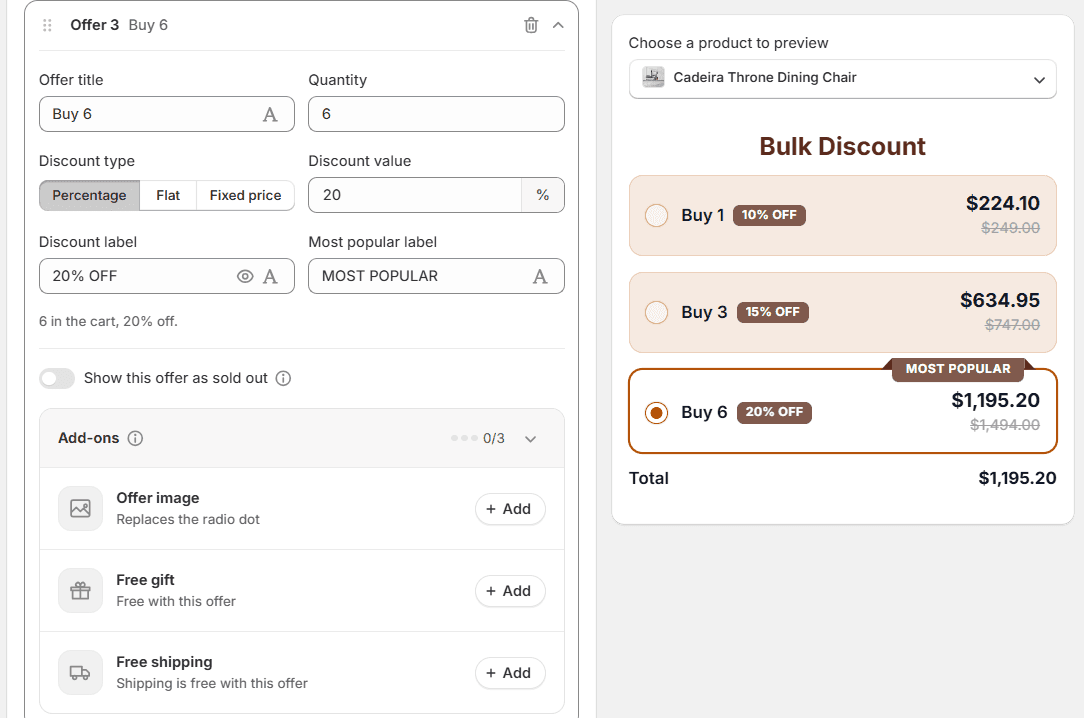
Add offer adds a row, up to six, and you can drag rows into any order. Each row can also carry its own extras: a picture in place of the radio dot, a Free gift, or Free shipping when that row is bought. If you run out of stock for a big pack, Show this offer as sold out keeps the row on the page, faded, and stops it from being sold.
One setting worth knowing about lives under Advanced settings: Volume discount (extend discount to all quantities). It is on by default, so with Buy 3 and Buy 6, a shopper who buys 4 or 5 still gets the Buy 3 discount. Turn it off and only exactly 3 or exactly 6 count.
Make it look like your store
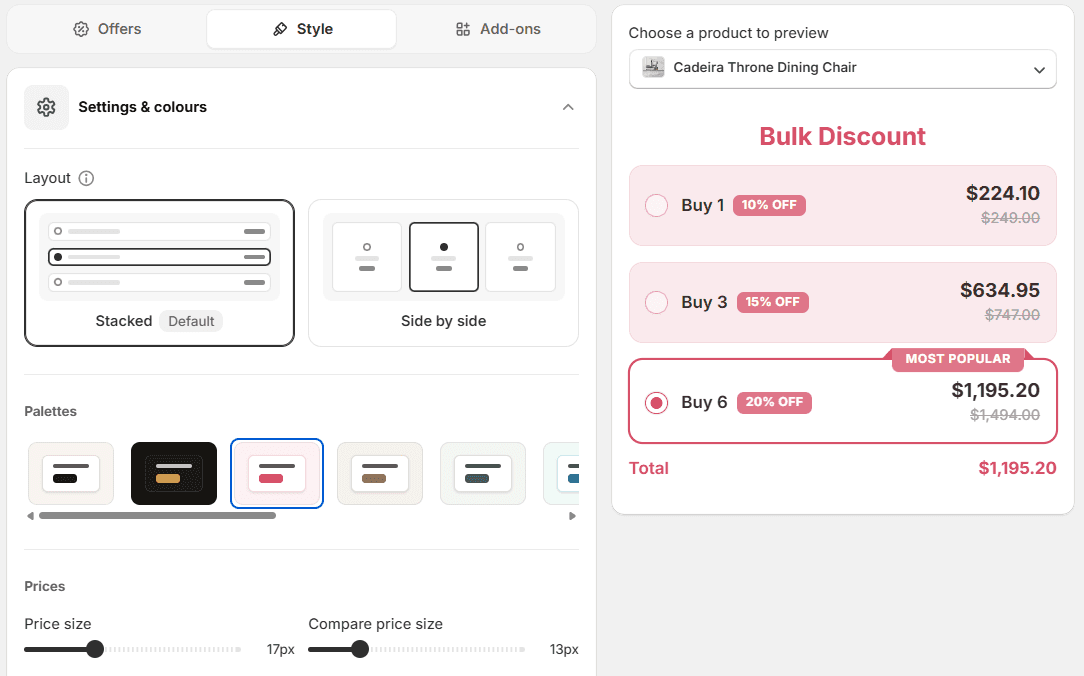
On the Style tab, pick Stacked rows or cards Side by side, start from one of the Palettes, then adjust sizes and colours below it. The preview follows every change.
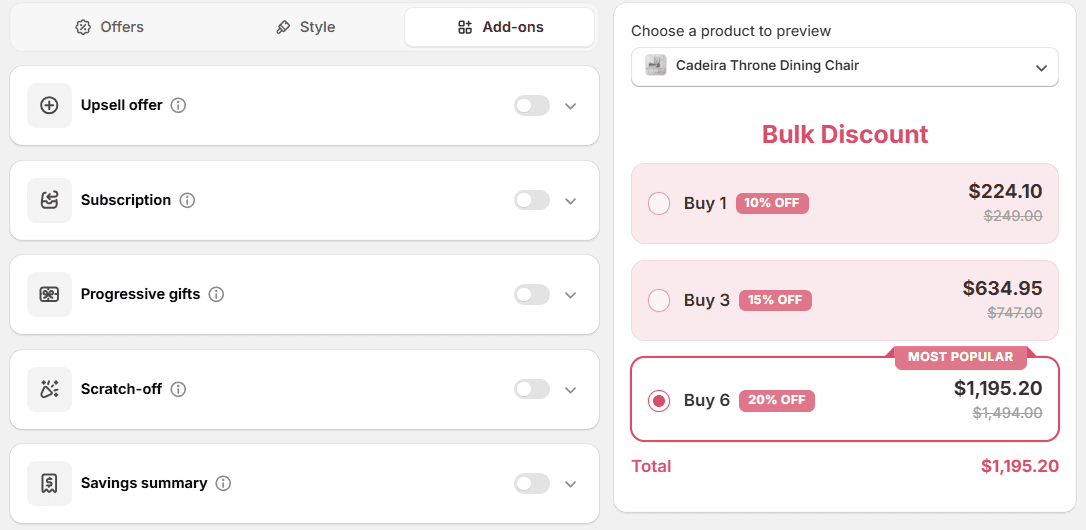
The Add-ons tab holds bigger extras, each behind its own switch: an Upsell offer, Subscription plans, Progressive gifts, a Scratch-off card and a Savings summary. None are needed. Leave them off for your first one.
Publish it
- Click Publish at the top right. Draft saves without putting it on your store.
- If you have never used the app on this theme, switch on its app embed once. On the app’s home page, the setup guide’s Open app embed button takes you straight to it in the theme editor. It is called BYOB Bundle Pages; switch it on and click Save. Every offer you publish after that just appears.
- Click Preview in the editor to open a product page the offer covers.
A product page can only show one ladder. If another live volume discount already covers some of the same products, Publish tells you which one and offers to move it to drafts. Nothing gets overwritten without you saying so.
What the shopper sees
On the product page, the ladder sits above your theme’s buy buttons (or below them, if you prefer, in Advanced settings). The shopper picks a row, adds to cart, and the cart gets that many.
The discount itself is applied by a Shopify Function, which is Shopify’s way of letting an app run its own discount logic inside checkout. The first time you publish, the app creates one automatic discount called Box-builder volume discounts, which you will see on Shopify’s Discounts page. Leave it switched on: it is what makes the prices on the ladder true at checkout, for every volume offer you run. At checkout the discount carries the row’s Discount label, so the shopper reads the same “20% OFF” they picked.
Things to know
- It counts what is in the cart. The ladder is a shortcut, not a gate. A shopper who types 6 into the cart gets the Buy 6 price too.
- Products in one offer count together. With Specific products or a Collection, three of one product and three of another make a Buy 6. With All products, each product counts on its own.
- It does not stack with other product discounts. The ladder already is the product’s price at that quantity, so a second product discount on top would take the same money off twice. Order discounts and shipping discounts still combine with it.
- One ladder per product, and at most six rows in it.
Volume discounts are live for every store on Flash Box Builder. If you set one up and the ladder does something you did not expect, send me what you tried.